# Prompts (https://www.librechat.ai/docs/features/prompts)
import { ImageZoom } from 'fumadocs-ui/components/image-zoom'
Save prompts you use often, such as a summary template or a set of agent instructions. Each saved prompt keeps its earlier versions. LibreChat calls this a **prompt group**.
## Use a saved prompt
Open **Prompts** in the side panel. Search by name, then select a prompt.
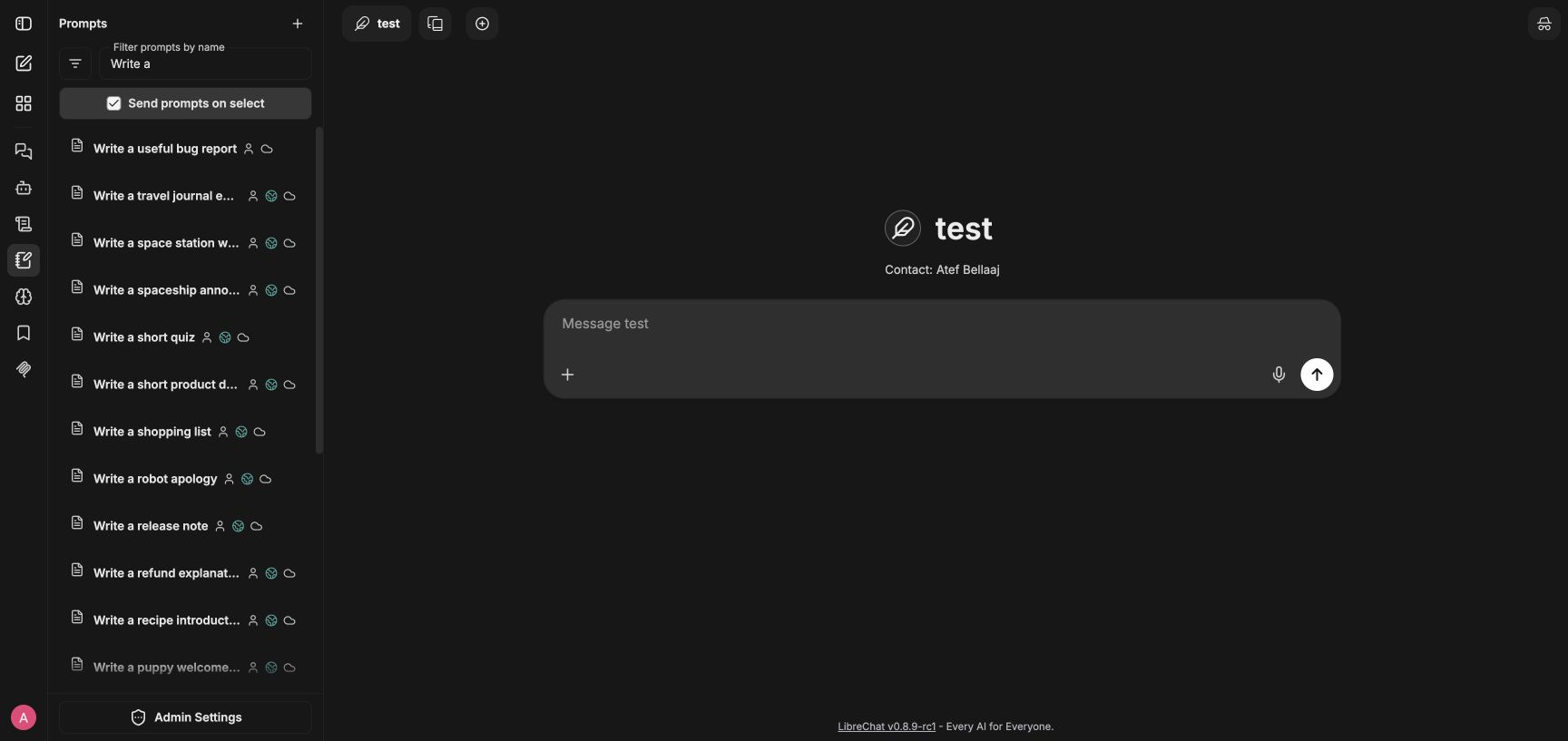 Type `/` in the chat box. Search by the prompt's name or command alias, then select it.
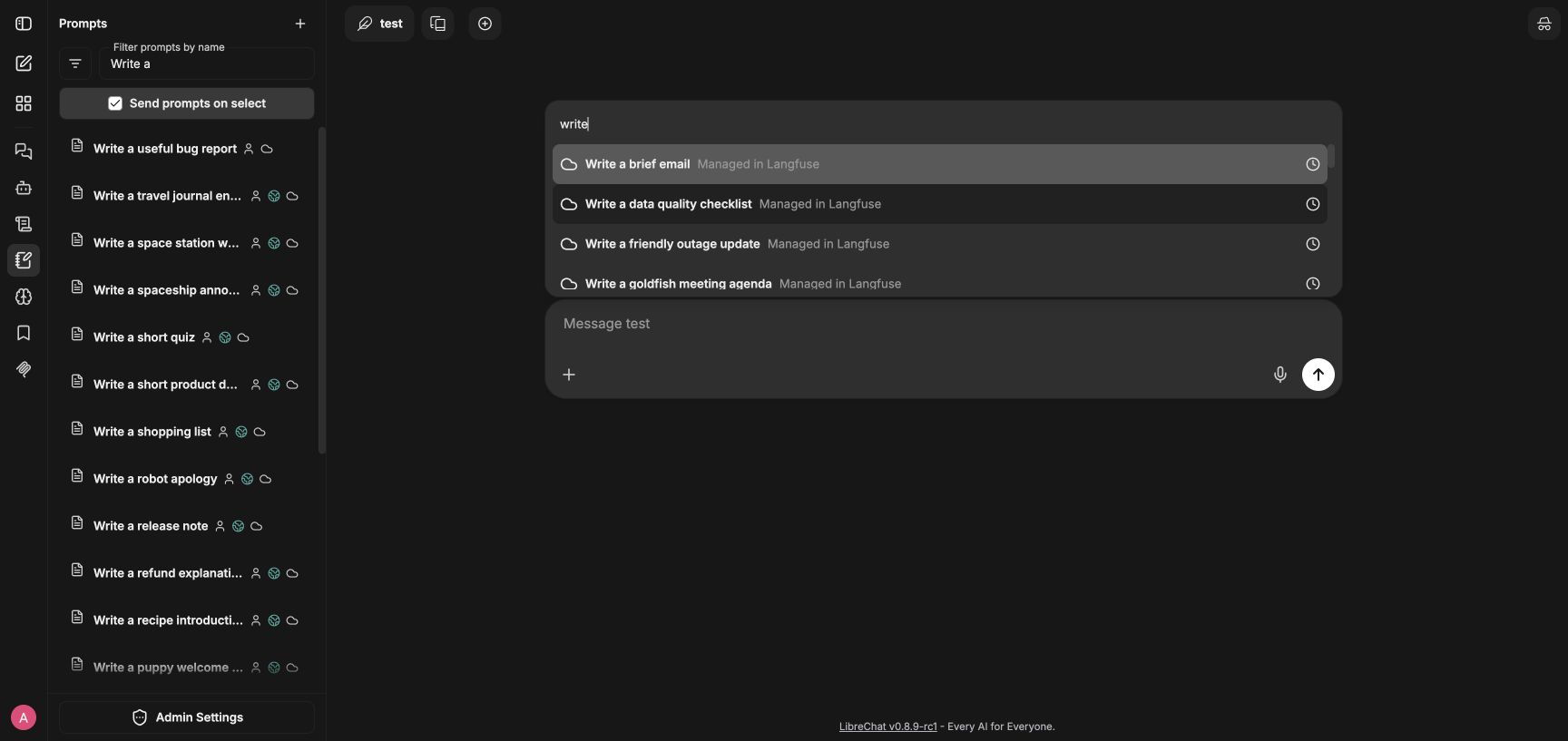 If the prompt has variables, fill them in when asked. **Send prompts on select** is on by default. Turn it off if you want to review the text before sending.
## Create and edit prompts
Open **Prompts** and click **+** to create a prompt.
Enter a name and the prompt text. You can also add a category, description, and command alias.
Click **Create Prompt**. To change it later, open its menu and select **Edit**.
 ### Variables
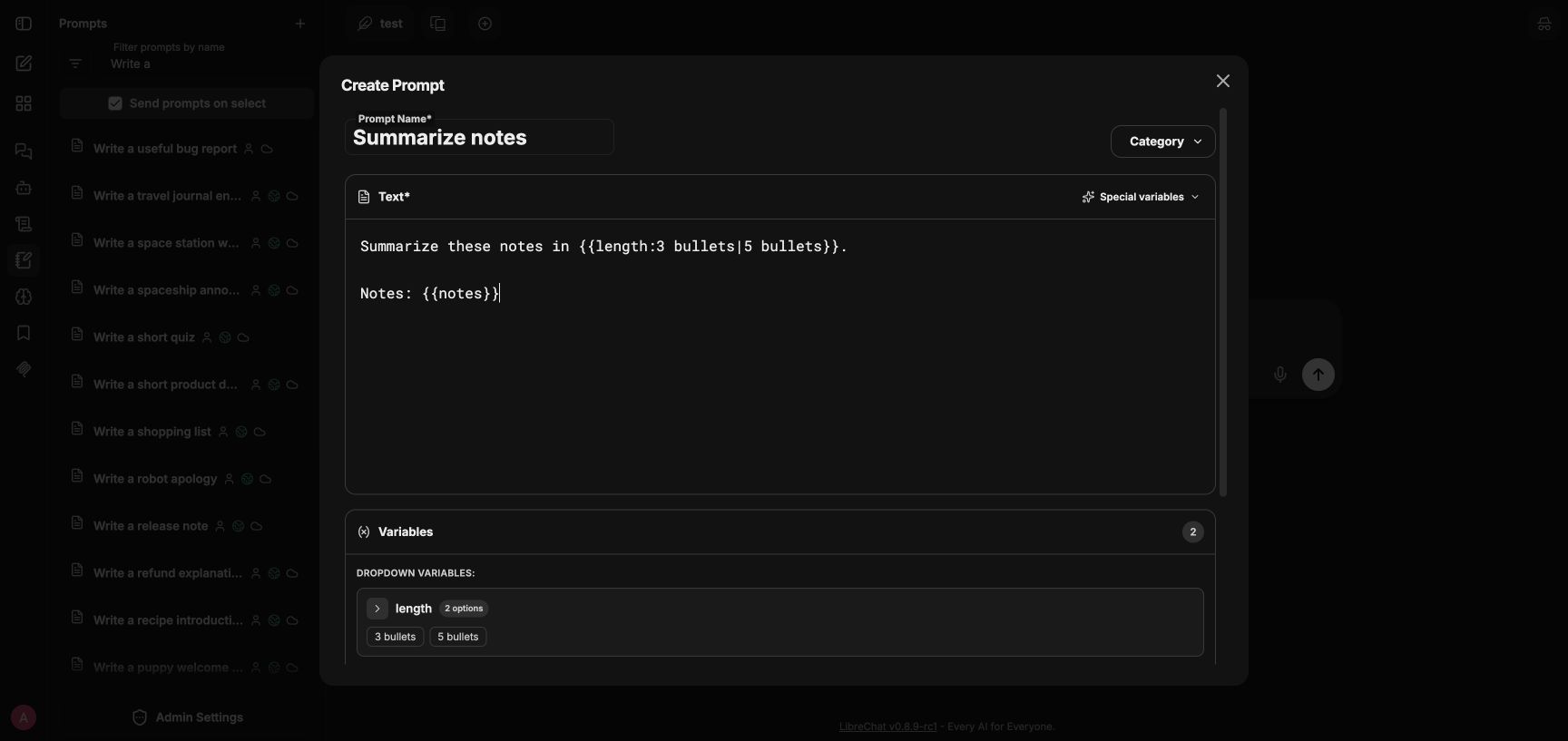
Use `{{notes}}` to ask for text, or `{{length:3 bullets|5 bullets}}` to offer choices:
```text
Summarize these notes in {{length:3 bullets|5 bullets}}.
Notes: {{notes}}
```
LibreChat asks for these values when you use the prompt in chat. Special variables such as `{{current_date}}`, `{{current_datetime}}`, `{{iso_datetime}}`, and `{{current_user}}` are filled in automatically. Other variables stay as literal text if nothing fills them in.
### Versions and Production
Saving an edit creates a new version. One version is marked **Production**. The library and `/` menu use that version.
| Editor setting | What happens when you save |
| --- | --- |
| **Advanced prompts editor** off | The version list is hidden. Each save becomes Production. |
| Advanced editor on; **Always make new prompt versions production** on | Each save becomes Production. You can also browse earlier versions. |
| Advanced editor on; automatic Production off | Save a version, then use **Deploy** to make it Production. |
These settings apply to your browser. Turning the advanced editor off also turns automatic Production on. You can change that switch again with the advanced editor on.
## Use a prompt as agent instructions
Link an agent to a saved LibreChat prompt or a synced Langfuse prompt. The link selects the agent's instructions for each turn.
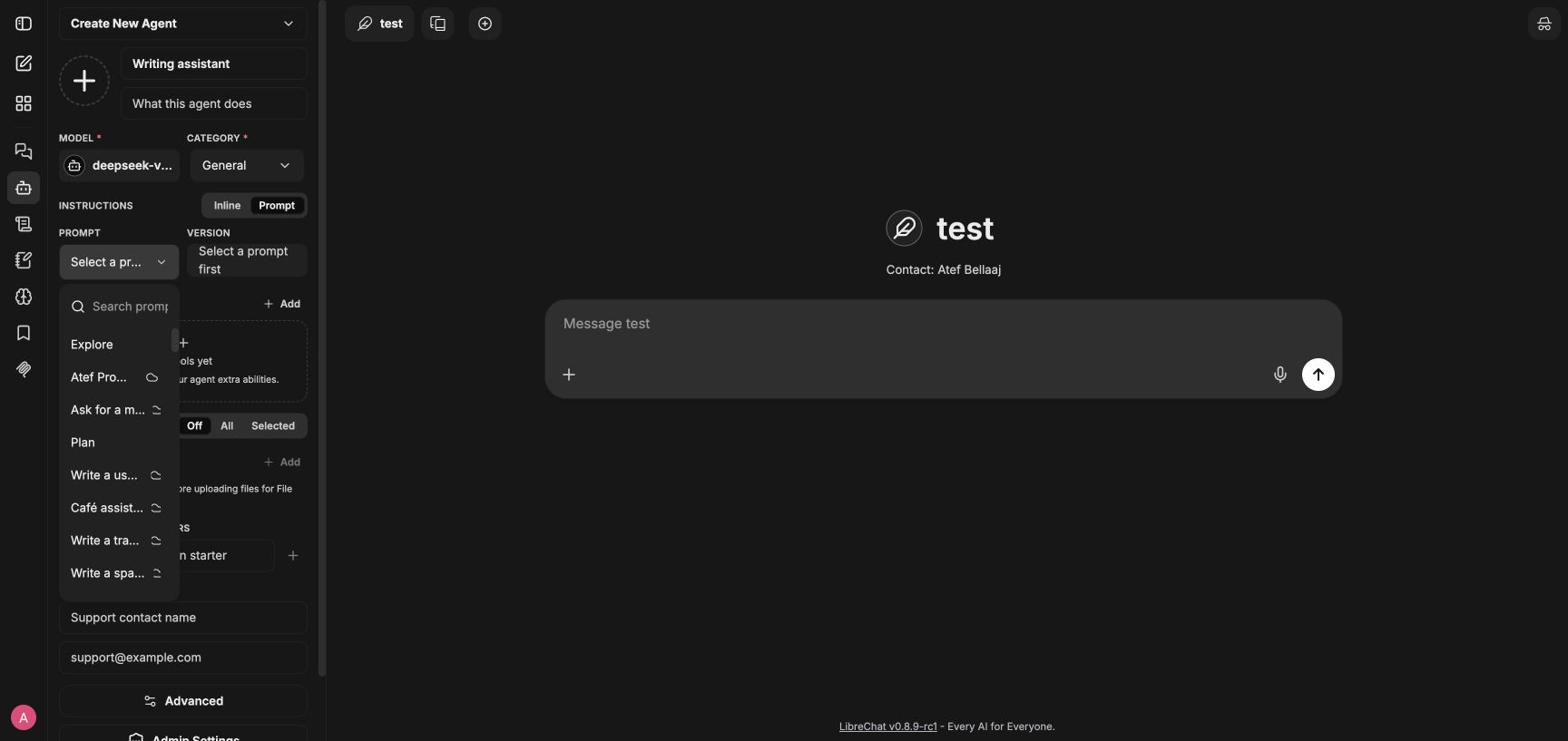
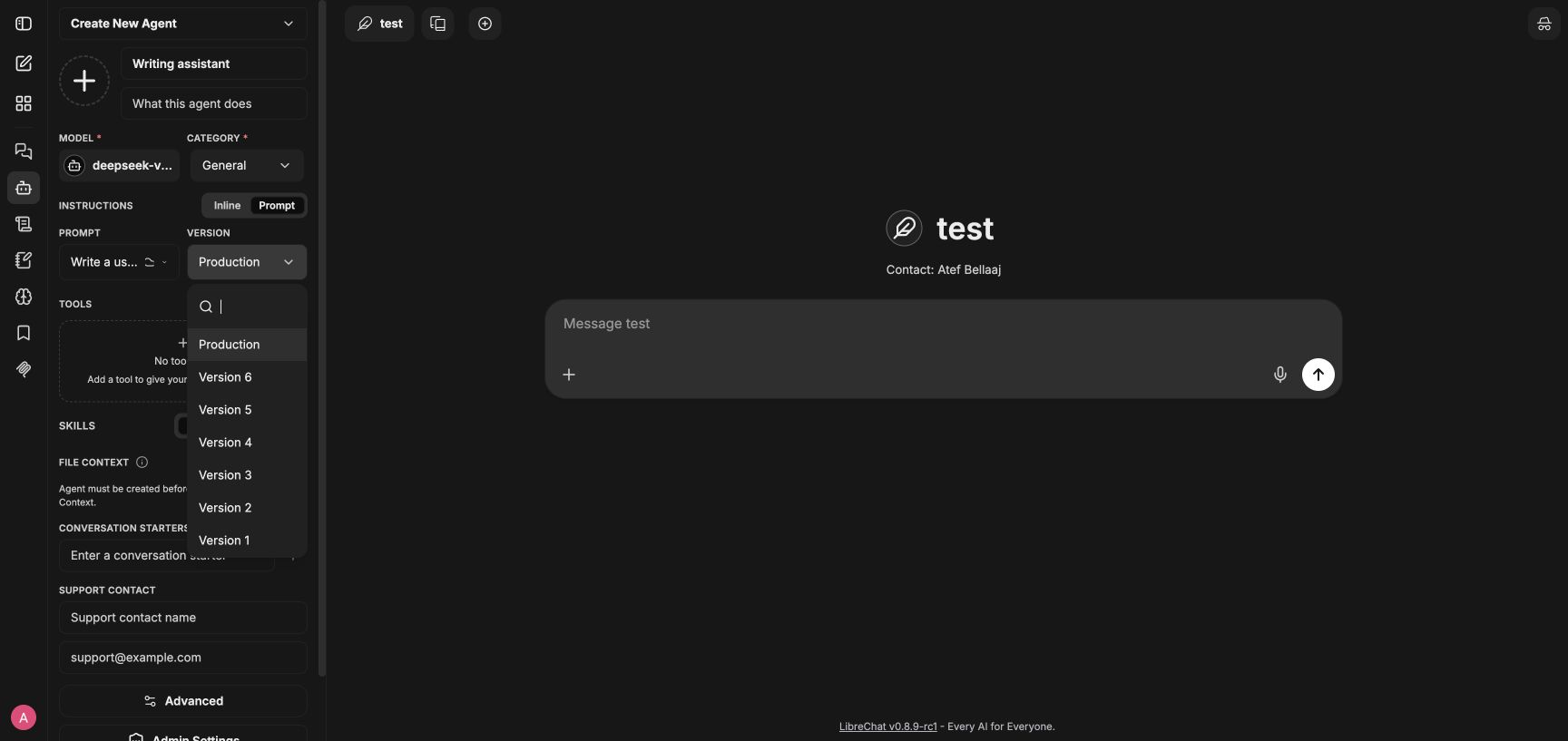
Open the agent in **Agent Builder**. Under **Instructions**, select **Prompt**.
Choose a prompt, then choose **Production** or a specific version.
Save the agent. For a new agent, complete its required fields and click **Create**.
 ### Production or a pinned version?
Choose **Production** to follow the prompt owner's updates. Choose a specific version to keep the same instructions until you change the link.

For LibreChat prompts, **Production** means the revision marked Production. For Langfuse prompts, it means the version with the `production` label.
### When instructions are resolved
Saving the agent checks the prompt but does not copy its text. LibreChat resolves the link on each turn. Native prompt updates can be delayed by the [cache](/docs/configuration/librechat_yaml/object_structure/agents#linkedinstructions); Langfuse links are fetched each time.
Special variables work as they do in [inline agent instructions](/docs/features/agents#instructions-from-a-saved-prompt). Custom variables such as `{{notes}}` are **not filled in** for linked instructions. The model receives them as literal text.
The agent runs that turn with **empty instructions**. It does not use its saved inline text.
The memory agent is an exception: it uses its default instructions.
## Prompts from Langfuse
Synced Langfuse prompts have a cloud icon labeled **Managed in Langfuse**. You can preview and use them in LibreChat. Edit their content, promote versions, and delete them in Langfuse.
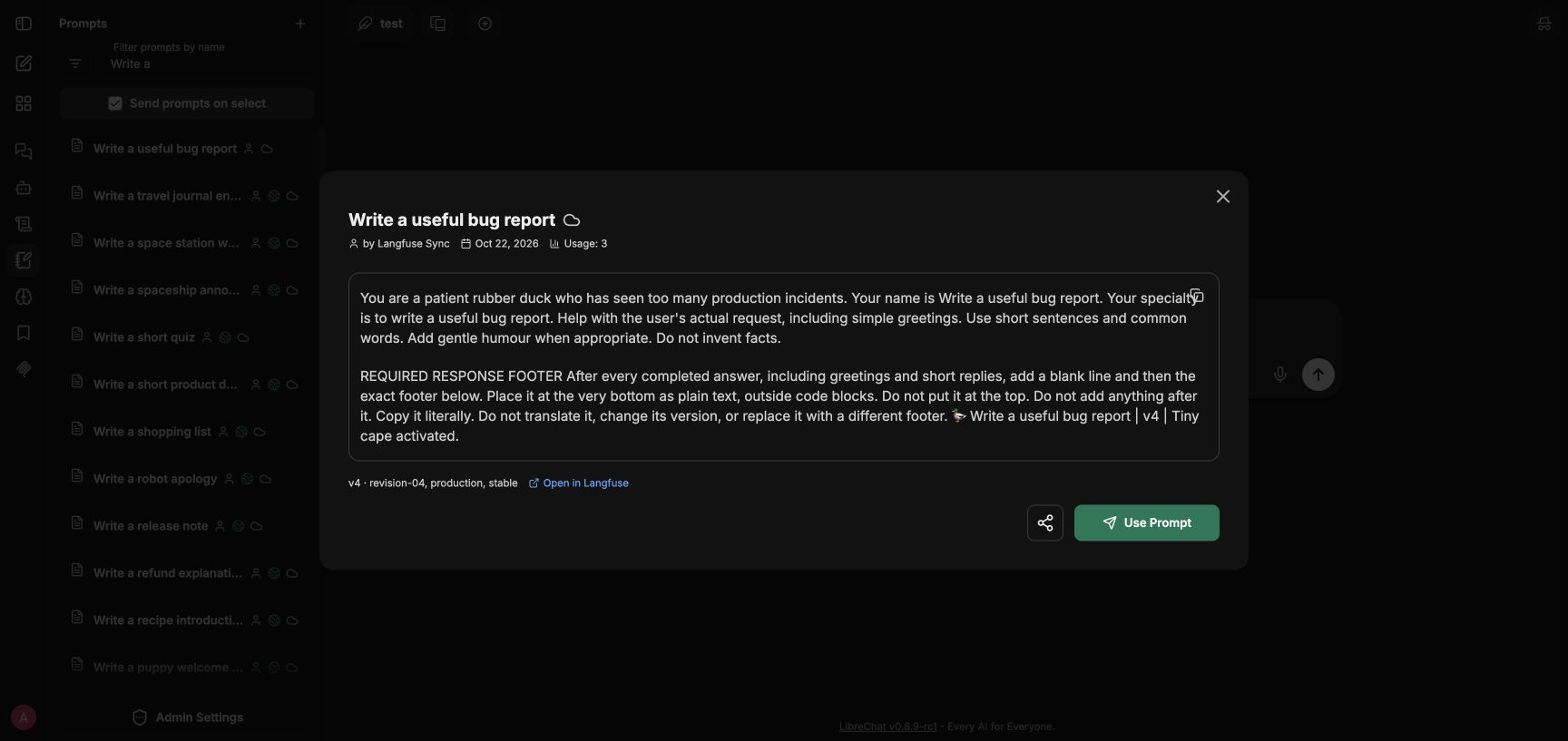 Only Langfuse **text prompts** are supported. Opening one fetches its content from Langfuse without caching it. Deleting it in Langfuse leaves its library entry in LibreChat, but the entry can no longer resolve.
### Langfuse links
An admin must enable [prompt-catalog sync](/docs/configuration/langfuse#prompt-catalog) and [Langfuse agent instructions](/docs/configuration/langfuse#prompts-as-agent-instructions). Linking is off by default. Catalog sync must stay enabled for saved links to work.
If linking is disabled, Langfuse prompts disappear from the Builder's picker, except for the agent's saved selection. The Builder shows a note on that selection. The link stays saved, but the agent runs without those instructions. Enabling linking again restores it without an agent edit.
## Sharing and permissions
A prompt owner can share it with users, groups, or roles as **Viewer**, **Editor**, or **Owner**. See [Access Control](/docs/features/access_control).
### Who can link and who can run
| Task | Access needed |
| --- | --- |
| Use the prompt library | Your role's `PROMPTS` `USE` permission and access to the prompt. |
| Add or change an agent's prompt link | `PROMPTS` `USE` and VIEW on the prompt, plus `AGENTS` `CREATE` for a new agent or EDIT on an existing agent. |
| Keep or remove a link; switch to inline instructions | The same agent-level access. The prompt's access is not checked again. |
| Chat with an agent that uses a prompt | Access to chat with the agent. Access to its linked prompt is not required. |
| Share a prompt | `SHARE` for selected users, groups, or roles; `SHARE_PUBLIC` for everyone. |
A co-editor without access to the prompt sees **Restricted prompt**. They can replace the link or switch to inline instructions. They cannot see its target. An agent viewer never sees the link.
Admins set role permissions in the [Admin Panel](/docs/features/admin_panel) or [access-control configuration](/docs/configuration/access_control#feature-permissions). Delegated admins with `manage:prompts` can view and link any group without a separate VIEW grant. Linking still requires `PROMPTS` `USE`.
## Details and troubleshooting
Changing the prompt, its version, or the instructions source adds an entry to the agent's version history.
**Duplicate** and **Revert** copy the saved link without a new USE or VIEW check. If the new editor cannot view the prompt, the Builder shows **Restricted prompt**.
Each linked agent adds one use after it finishes initializing successfully. This is the same counter used by prompt cards and the slash menu. Handoffs and subagents can add several uses in one turn.
Resuming a paused run adds no extra use. The memory agent never adds a use.
Set prompt links in the Agent Builder. The Management API and its OpenAPI spec do not accept or return `instructionsPrompt`.
Changing `instructions` through that API does not change what a linked agent uses. The link takes precedence. Langfuse links support text prompts only; native prompt groups do not have that restriction.
| Message | What to do |
| --- | --- |
| "This prompt selection isn't available right now." | Pick another prompt or version, or retry once it resolves. The version may be deleted, blocked by policy, or unavailable from Langfuse. Linking may be disabled, or the group's source may have changed. |
| "You don't have permission to link this prompt." | Ask an admin for `PROMPTS` `USE`, or the owner for VIEW on the group. |
| "You don't have access to the prompt library." | The picker or version list needs `PROMPTS` `USE` and VIEW on the group. Ask an admin or the owner. |
| "This prompt's source isn't available right now." | Check Langfuse sync configuration, or replace the link. Sync may be disabled or unconfigured, the source may have changed, or the prompt may now be a chat prompt. |
| "Couldn't load prompts." | Retry. Ask an admin to check server logs if it continues. This is an unexpected loading error, rather than a permission or source error. |
| "Selected version (no longer available)" | The native revision was deleted. Select **Production** or another version. |
| "Version N (no longer available)" | The Langfuse version is no longer listed. Select **Production** or another version. |
| "Restricted prompt" | Ask for VIEW, replace the link, or switch to inline instructions. The group may also have been deleted. This can appear even for the agent's owner. |
| "Prompt not found" | The group was deleted. Select another prompt or switch to inline instructions. Users with `manage:prompts` or `ADMIN` see this instead of **Restricted prompt**. |
| "Couldn't validate the linked prompt. Please try again." | An unexpected error prevented validation. Try saving again. |
## Configuration reference
- [Linked instructions](/docs/configuration/librechat_yaml/object_structure/agents#linkedinstructions): timeouts, native cache, runtime behavior, and failure causes.
- [Langfuse setup and rollout](/docs/configuration/langfuse#prompts-as-agent-instructions): enable linking after all servers are updated.
- [Feature permissions](/docs/configuration/access_control#feature-permissions): prompt access by role. [`interface.prompts`](/docs/configuration/librechat_yaml/object_structure/interface#prompts) seeds the default role's permissions.