 LibreChat
Forking Chats
Branch a conversation from any message into a new chat, choosing how much history and which message branches to carry over.
Forking creates a new conversation that branches off from a specific message in an existing one. The new chat copies the messages you choose, so you can explore an alternate direction, test a different prompt, or split a long thread into focused topics without altering the original.
How to Fork a Conversation
Hover over a message and open its menu, then select the fork icon. The message you open the menu from becomes the target message for the fork.
Choose a fork option to control which messages are copied (see below).
Confirm the fork. LibreChat opens the new conversation with the copied messages, leaving the original untouched.
The target message is the message you opened the menu from. If you enable Start fork here, the target instead becomes the latest message in the conversation, and forking runs from the selected message forward.
Fork Options
Each option copies a different set of messages relative to the target.
Visible messages only
Copies only the visible messages: the direct path to the target message, excluding any branches.
Include related branches
Copies the direct path to the target message along with any branches that sit along that path.
Include all to/from here
The default option. Copies every message leading up to the target, including neighboring branches, whether or not they are visible or on the same path.
Additional Settings
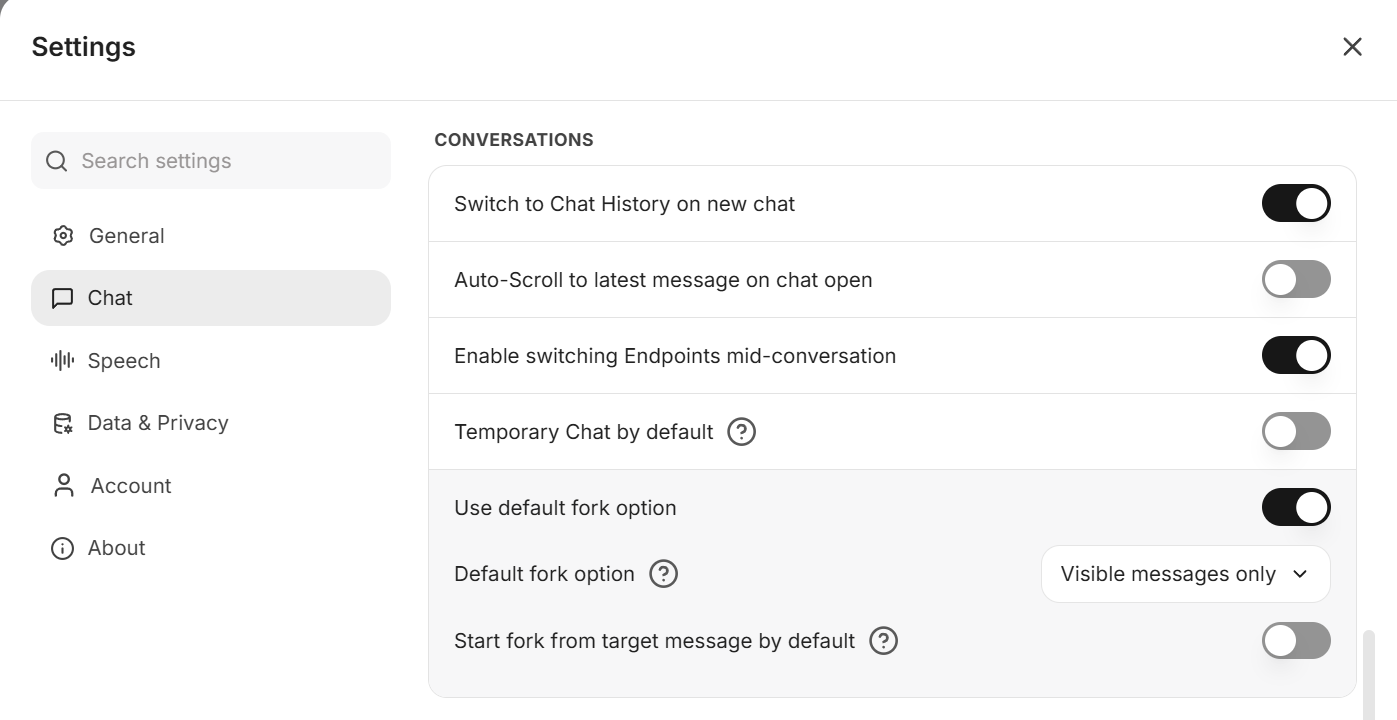
Start fork here forks from the selected message to the latest message in the conversation, using the option chosen above.
Remember saves the options you select and applies them to future forks, so you do not have to set them each time.
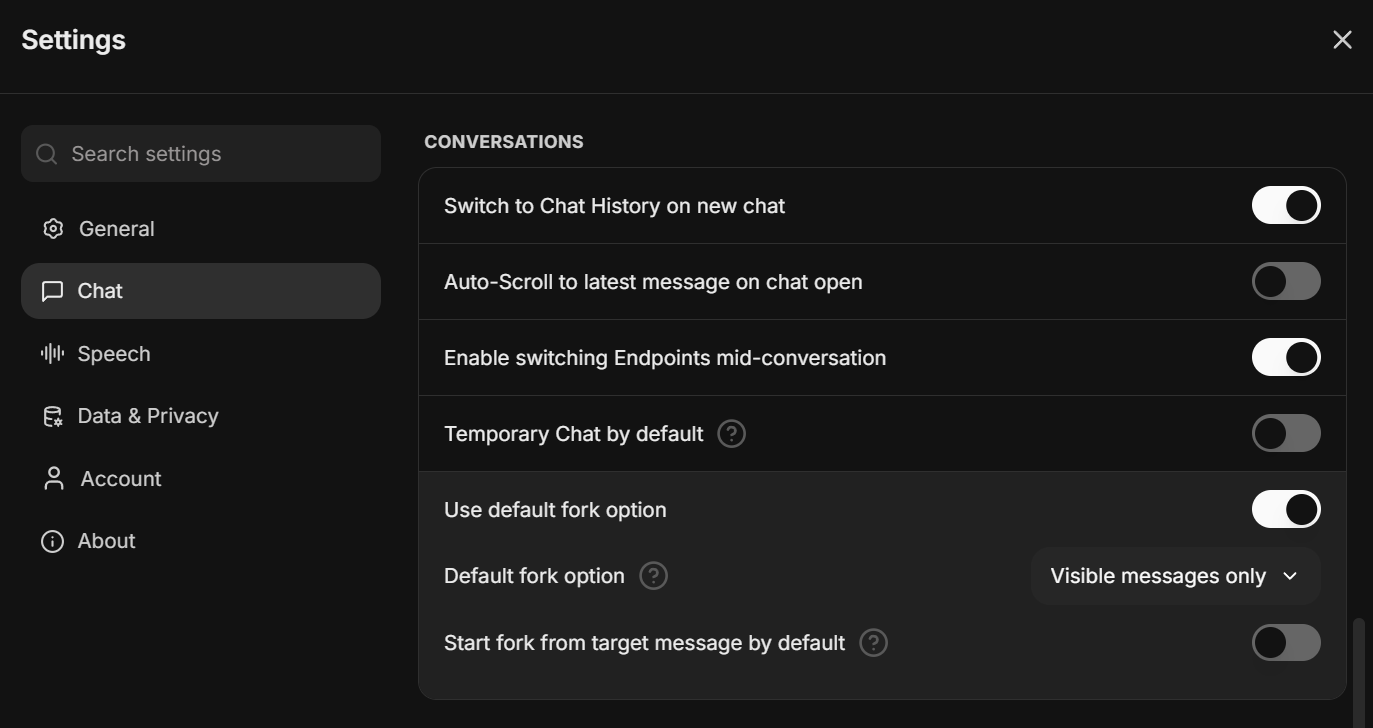
You can also set the default fork behavior from the settings menu.
How is this guide?