 LibreChat
Shareable Links
Share your conversations with others using LibreChat's shareable links feature, complete with QR codes, branching messages, and artifacts support.
Shareable links let you publish a read-only branch of a conversation that others can open through a generated URL or QR code. Recipients see the published messages, branches, and artifacts without changing the original. Signed-in recipients can continue from the visible branch as a personal copy.
Key Features
- Easy sharing: Generate a link in a couple of clicks.
- QR codes: Open the conversation on a phone by scanning a code.
- Branching: Shared links keep every branch of the conversation.
- Artifacts: React components, HTML previews, and Mermaid diagrams stay interactive.
- File snapshots: Referenced conversation files can be previewed or downloaded from the shared link without granting recipients access to the owner's live file ACL.
- Continue as a copy: Signed-in viewers can copy the visible branch into their own conversation history and continue chatting.
- Recipient preferences: Viewers can switch language and theme.
- Stable updates: Publish newer turns and the current file choice without changing the URL.
- Shared badges: Active links are marked in the conversation list and chat header.
- Link management: One dashboard to review or revoke every link you've created.
Share a Conversation
You can start sharing from two places.
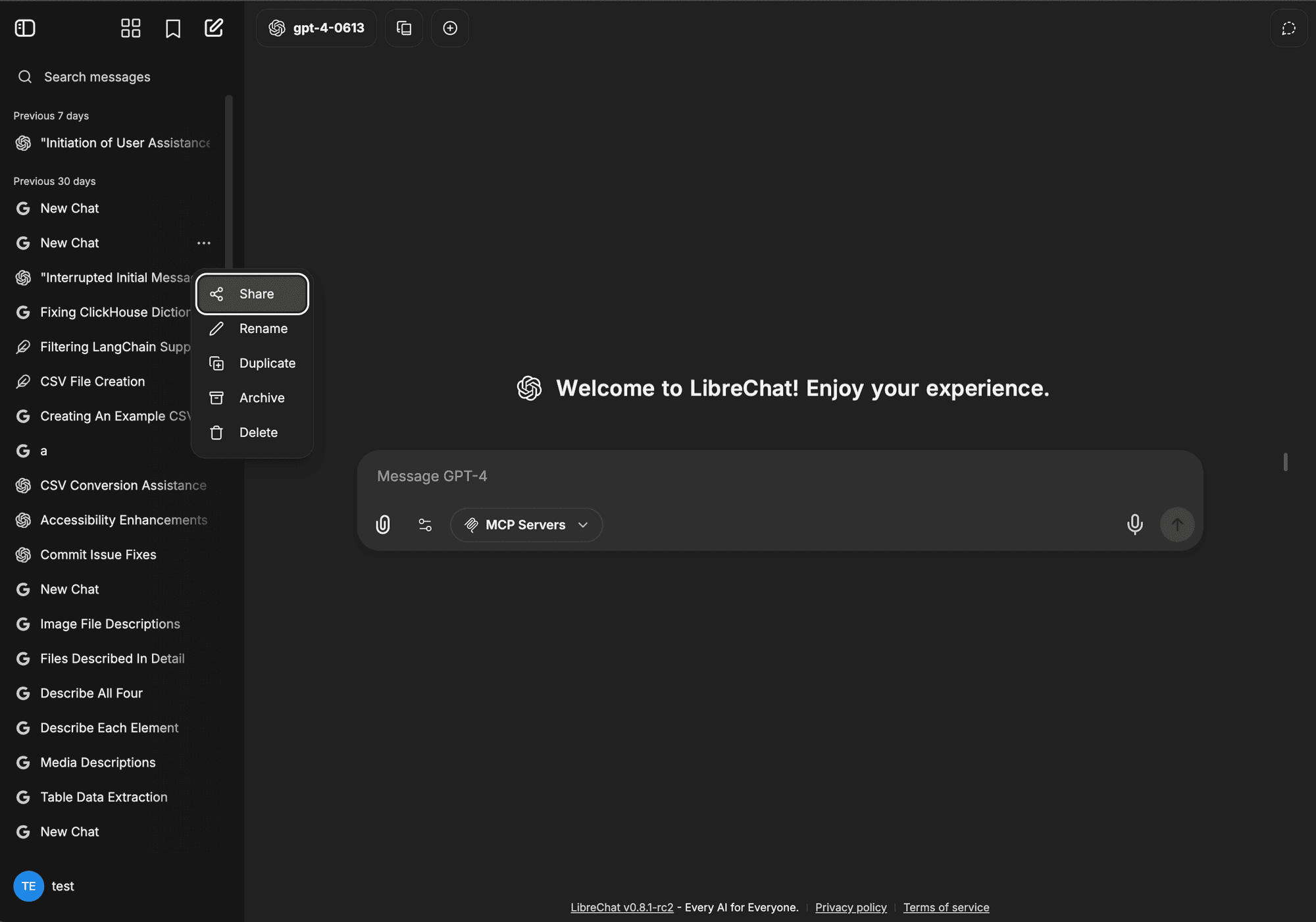
From the conversation menu. Open the menu next to a conversation in the sidebar and choose the share option.
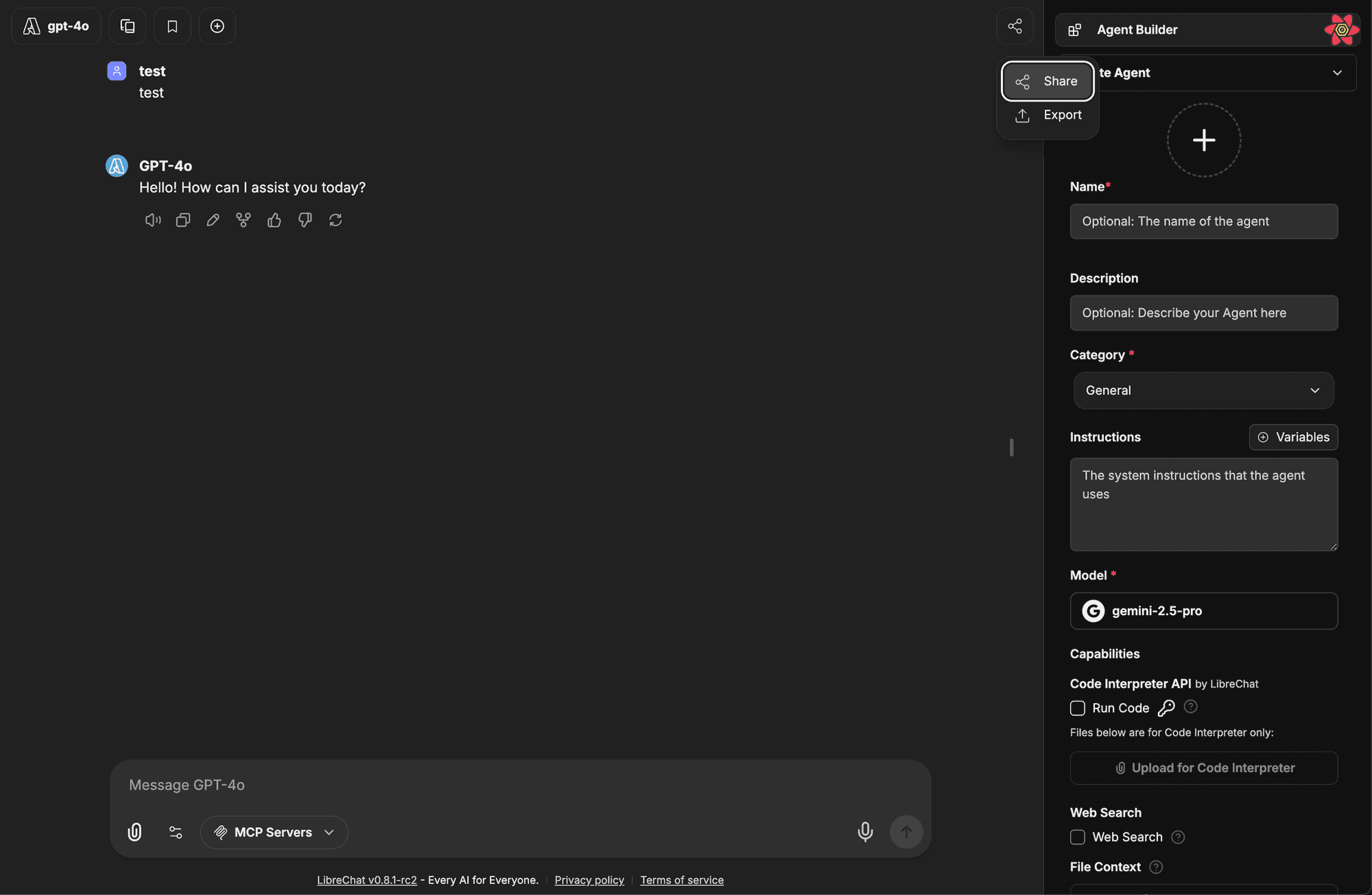
From the share button. Inside an active conversation, use the dedicated share button in the header.
Share Link Options
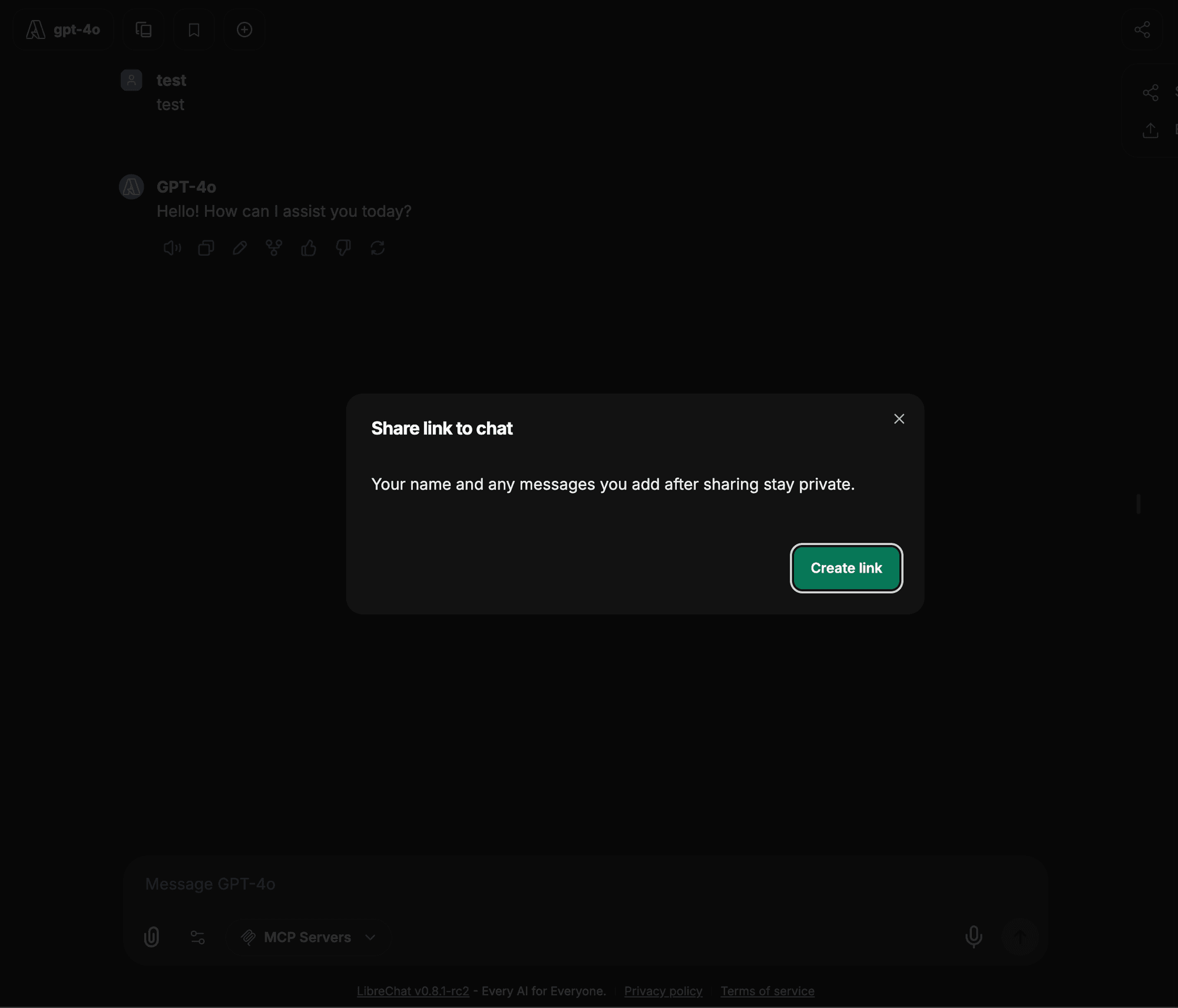
Creating a link opens a modal where you control how the conversation appears to recipients.
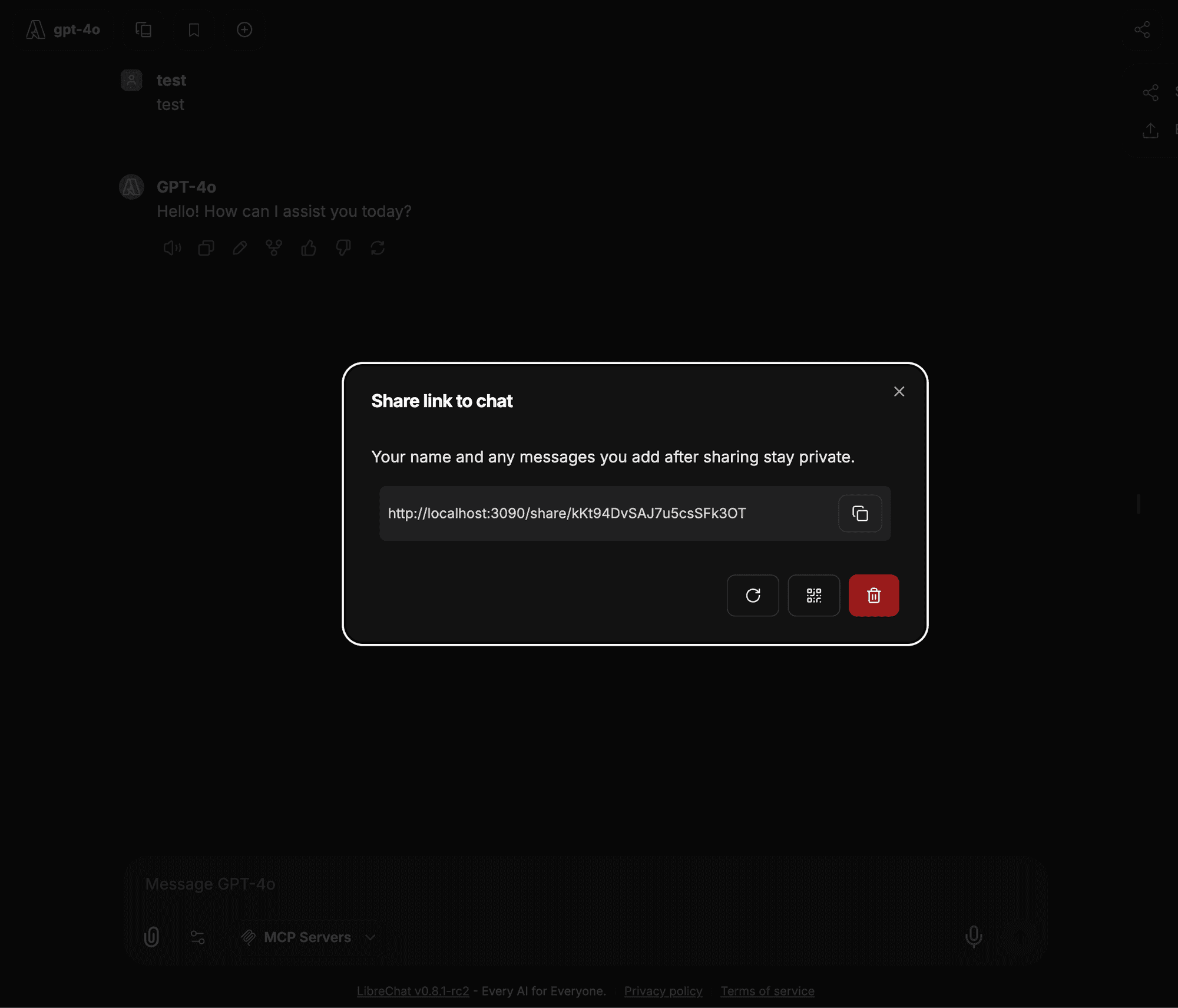
Once a link exists, the modal offers these actions:
- Update link: Republish the latest messages through the selected branch tail and the current file-sharing choice while keeping the same URL.
- Generate QR code: Create a QR code for mobile access.
- Copy link to clipboard: Copy the shareable URL.
- Delete link: Remove the link and revoke access for anyone who has it.
When file snapshots are enabled, users can choose whether the link includes files referenced in the published messages. The selected files are pinned to that share revision and served through share-specific routes without granting access to the owner's live file ACL. Updating the link replaces the pinned set and file-sharing choice; stable file URLs revalidate so a removed or replaced snapshot is not served from an older browser cache.
Publication is tied to the selected branch's exact persisted tail. If its newest message is still being saved, LibreChat retries once without switching to another branch. If the tail is still unavailable, or the conversation has no persisted messages yet, the modal shows a specific error so you can wait and retry. An unavailable shared-link view also offers Retry to refetch the same URL.
QR Codes
Generate a QR code for any shared conversation, then scan it with a phone camera to open the link. The code points to the same shared URL.
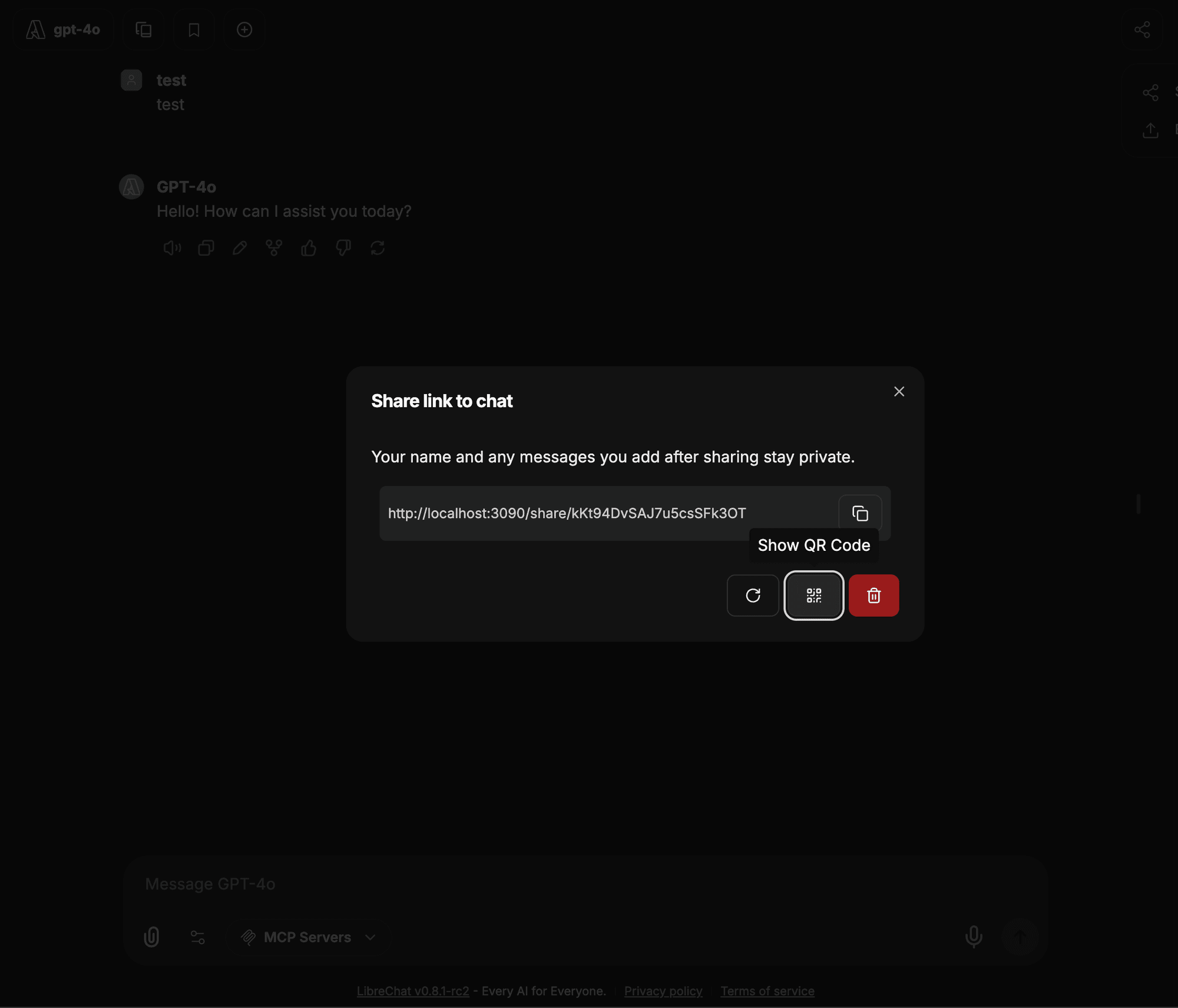
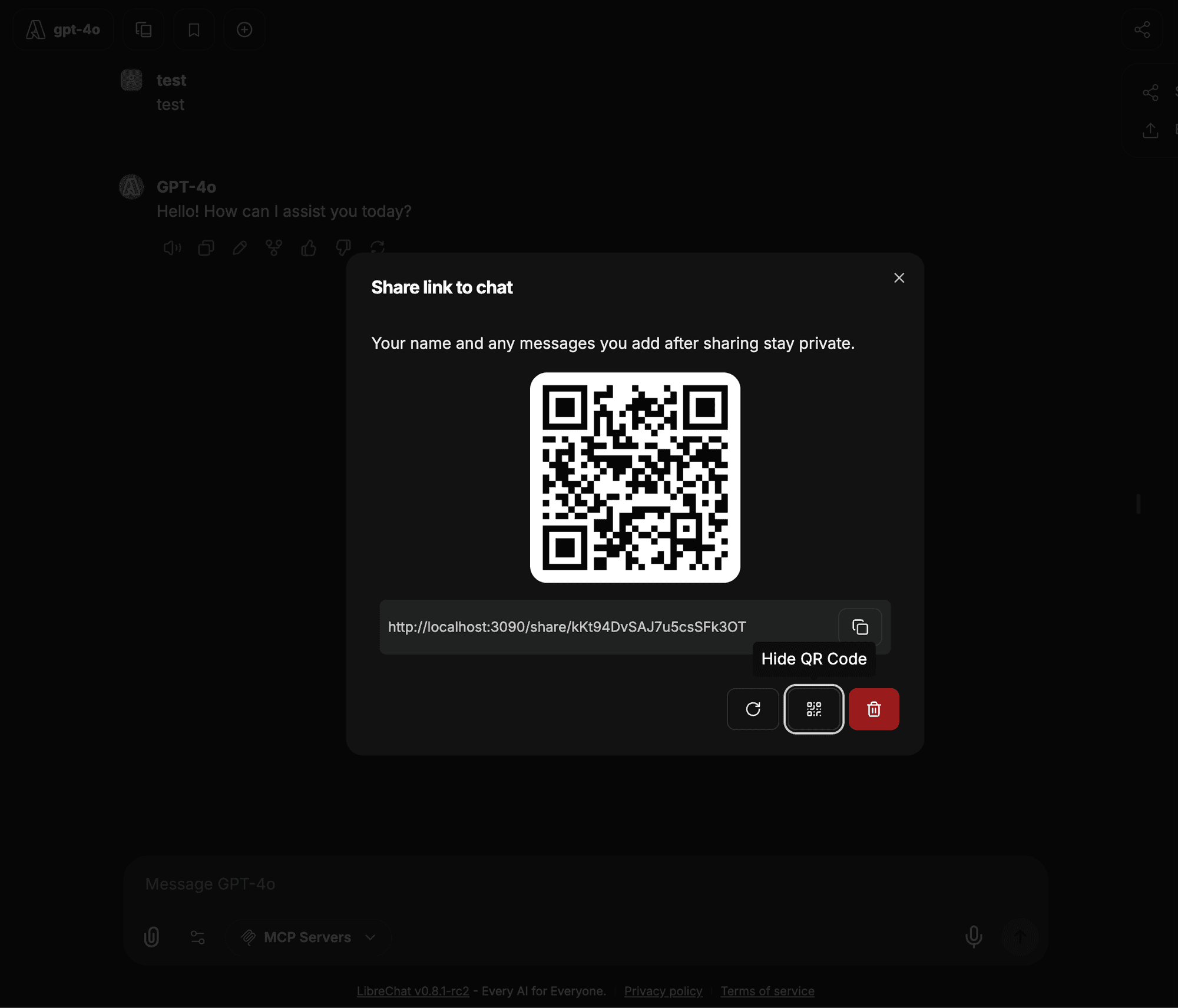
QR codes are handy for presentations, quick mobile access, printed handouts, and conference demos.
Viewing Shared Conversations
When someone opens your link, they see a focused, read-only view of the published branch, including its date, messages, and artifacts.
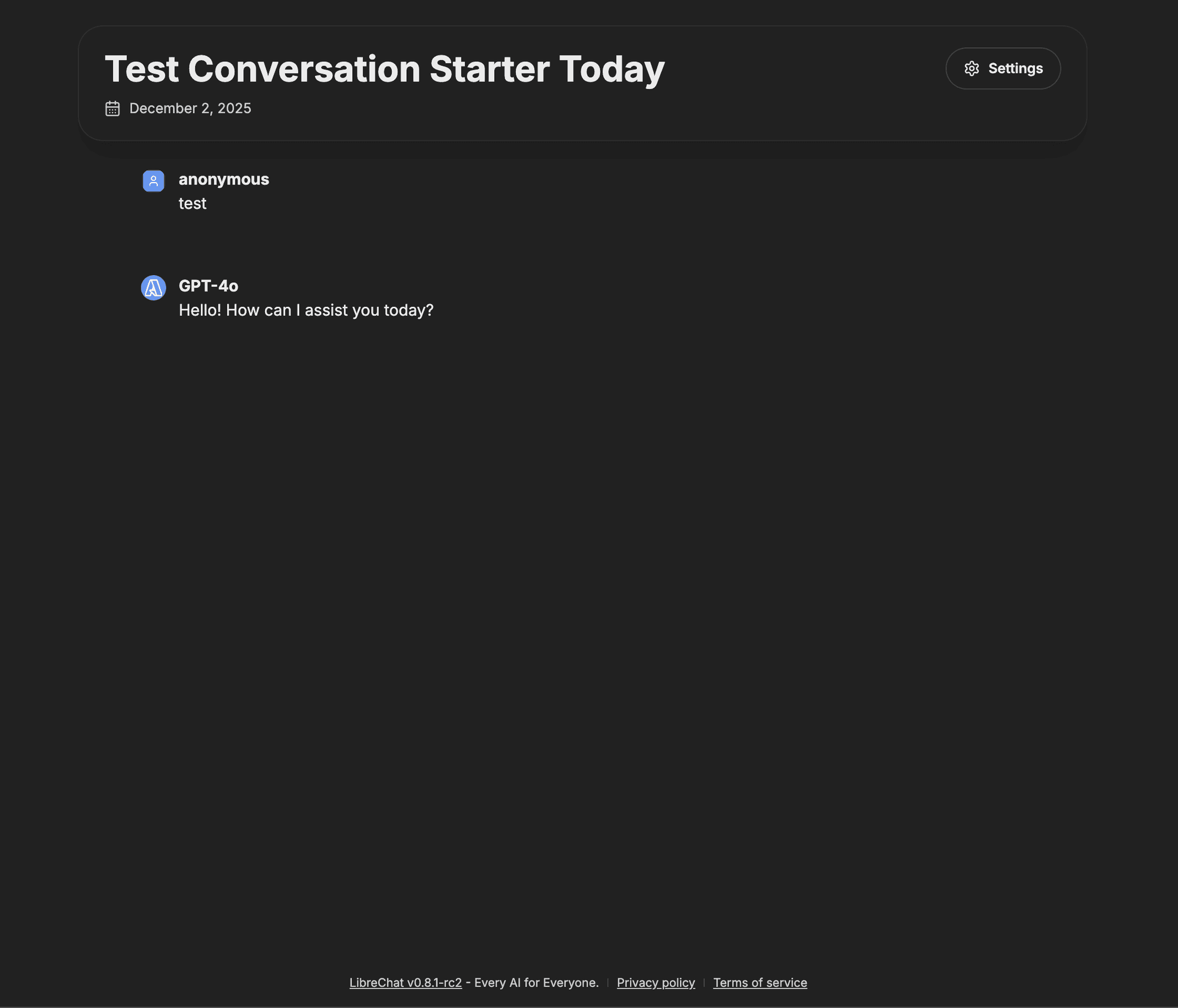
Continue a Shared Conversation
An authenticated viewer can select Continue this chat to create a personal conversation from the branch currently shown. LibreChat copies only the direct path to the active message, including eligible snapshotted file references, and opens the new conversation under the viewer's account.
Continuing never changes the shared snapshot or the owner's conversation. Public viewers must sign in before LibreChat can create their copy.
The copy request is tied to the share revision the viewer loaded. If the owner updates the same link before the viewer continues, LibreChat reloads the current revision and asks the viewer to retry instead of copying message positions from stale content.
Branching
Shared links preserve conversation branches, so recipients can follow the different paths the discussion took. Use the branch navigation arrows to move between them.
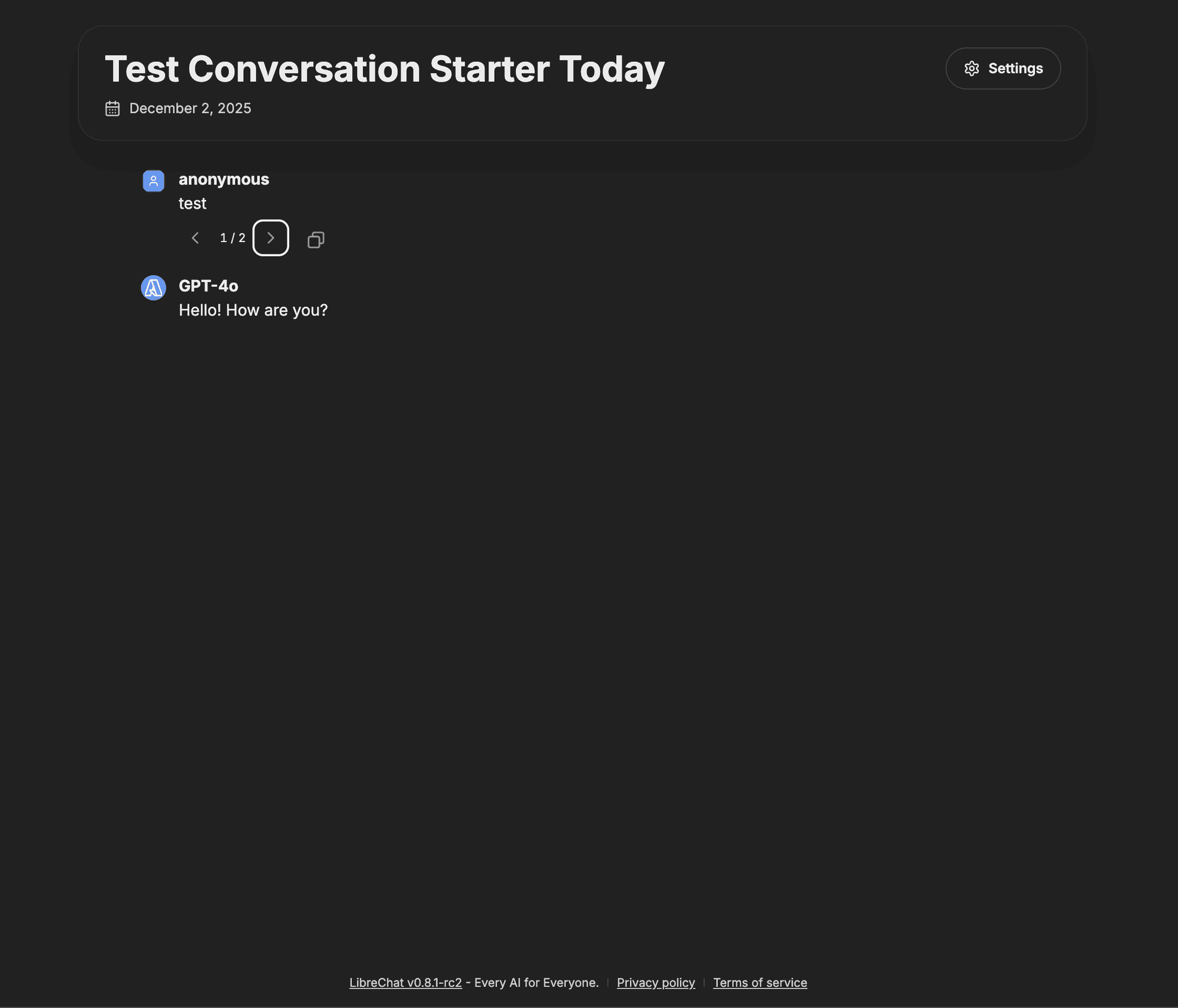
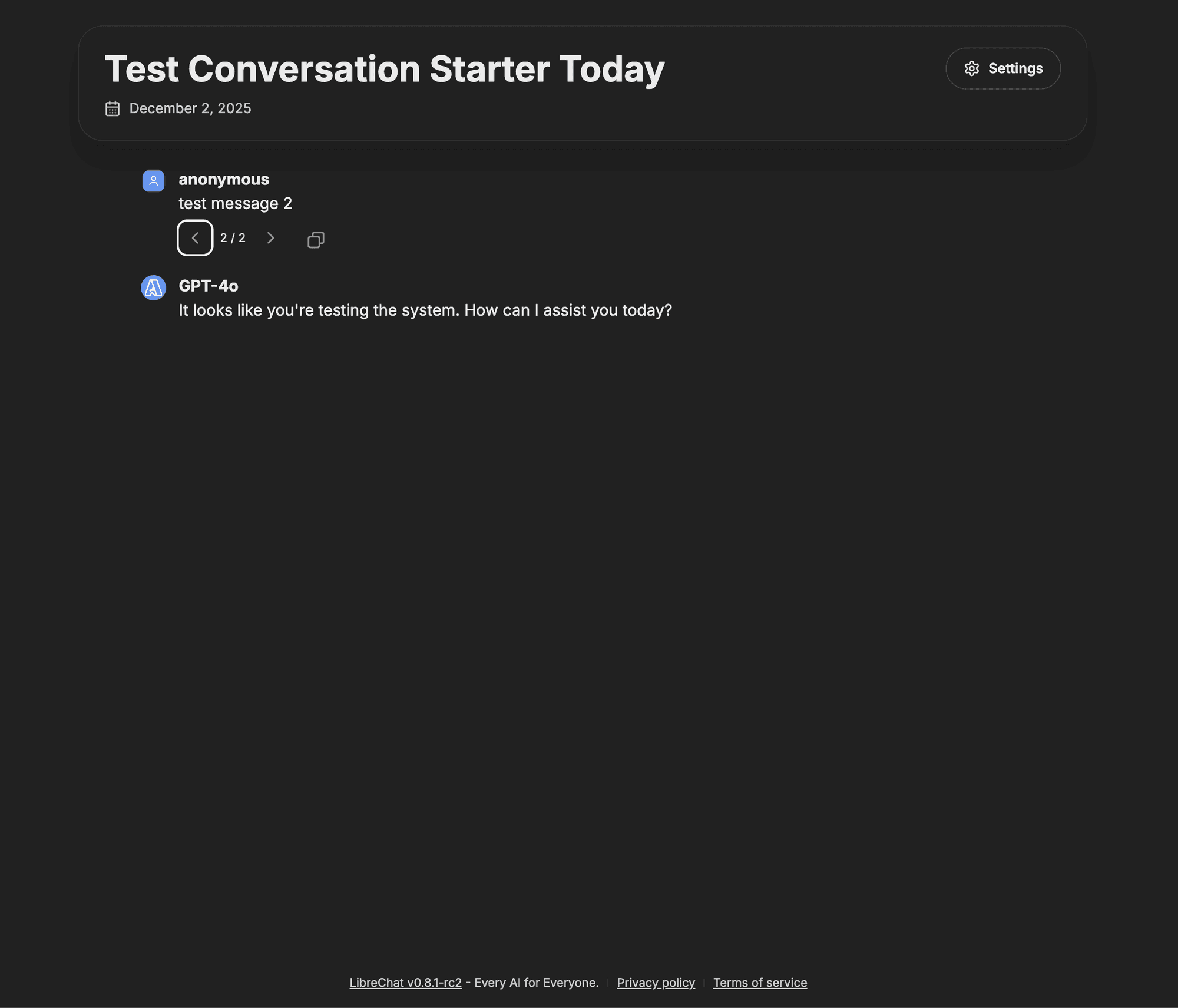
This is useful for showing how different prompts lead to different AI responses, or how a single problem can be approached several ways.
Artifacts
Artifacts generated during the conversation stay fully functional in shared links.
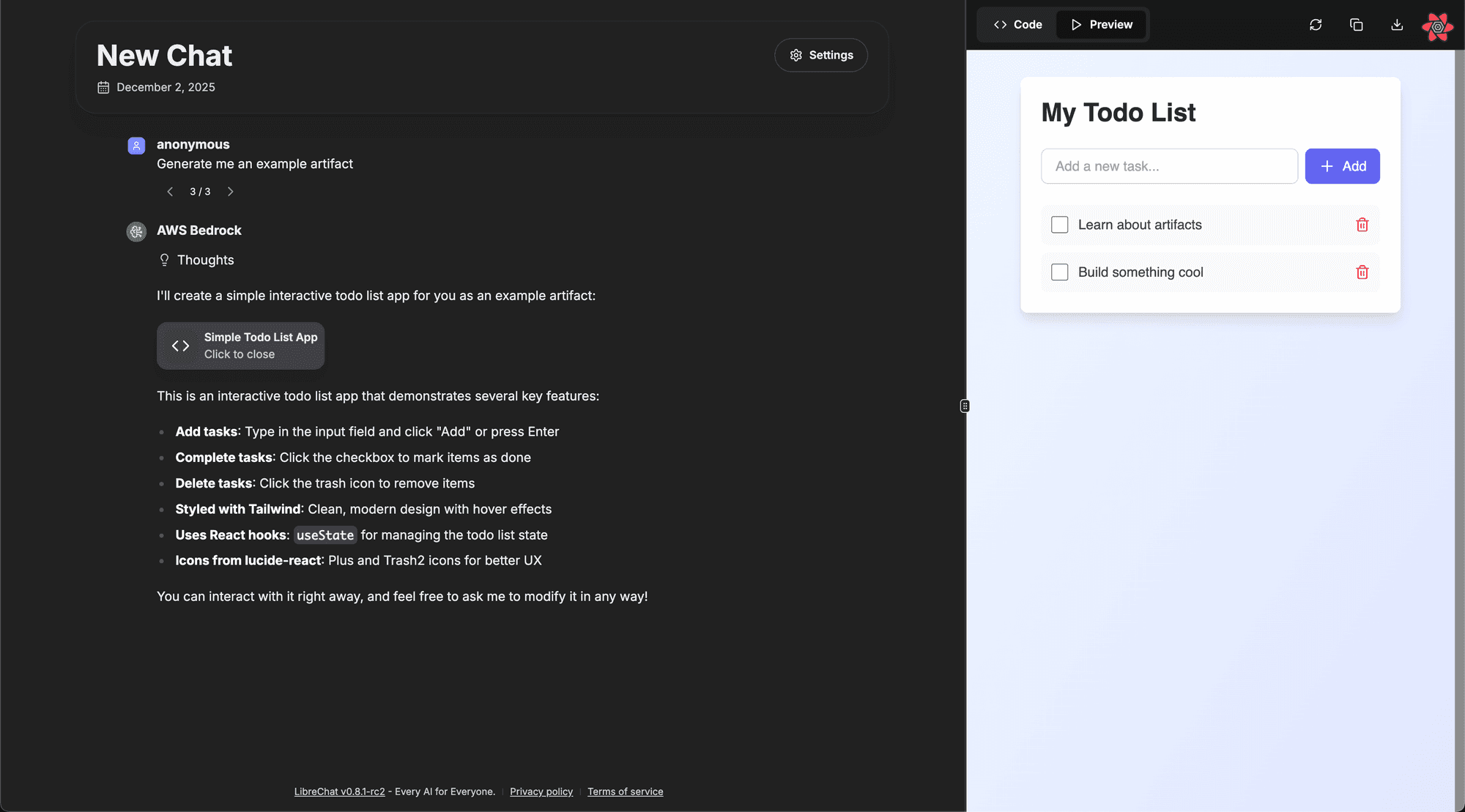
Recipients can:
- View interactive React components.
- See HTML previews.
- Examine Mermaid diagrams.
- Read the underlying code and the context it was generated in.
Recipient Preferences
Viewers can adjust the interface to their own preferences without affecting your settings.
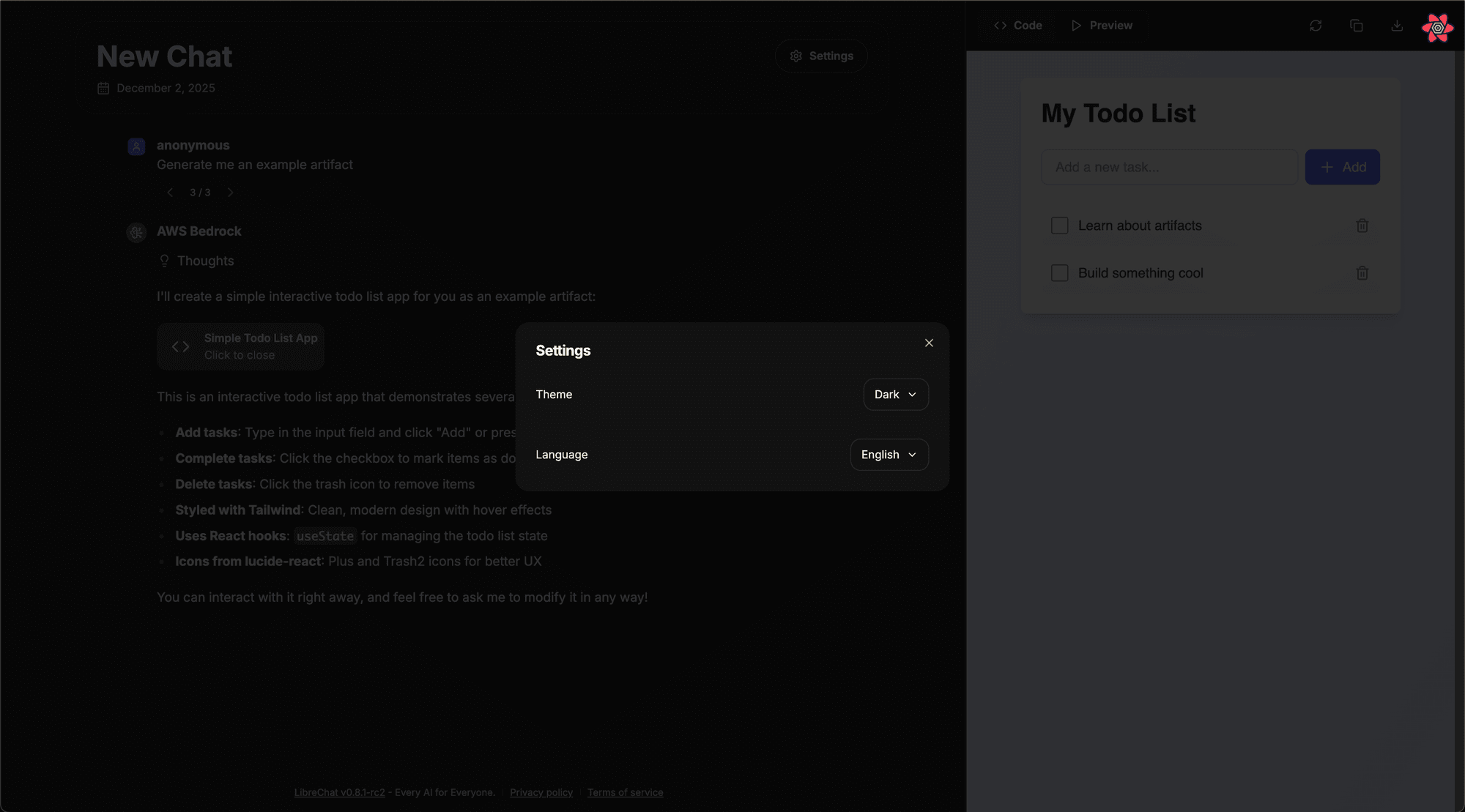
- Theme: Light, dark, or system.
- Language: View the interface in their preferred language.
Managing Your Shared Links
Open the Shared Links dashboard under Settings → Data Controls to review every conversation you've shared.

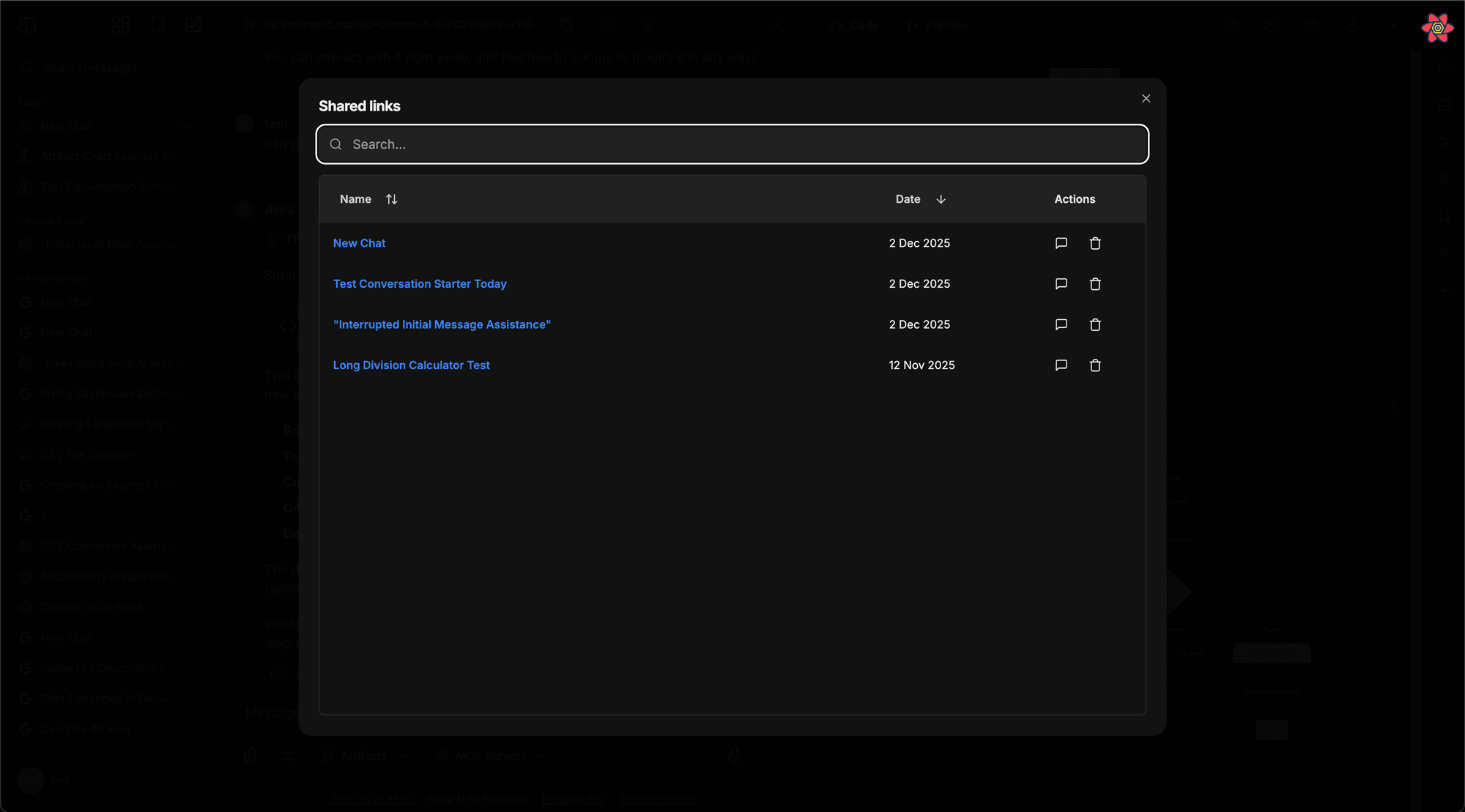
From the dashboard you can:
- View all links: See every conversation you've shared.
- Search and filter: Find a specific shared link and preview its content.
- Revoke access: Delete a link to stop sharing immediately.
Conversations with an active shared link also show a link badge in the sidebar, and the chat header's share control shows the same active state.
Configuration
Three environment variables in your .env file control the feature:
ALLOW_SHARED_LINKS(default:true): Enables the shared links feature. Set tofalseto stop users from creating links.ALLOW_SHARED_LINKS_PUBLIC(default:false): Controls whether links open without authentication. By default, recipients must be logged in. Set totrueto allow public, unauthenticated access.SHARED_LINKS_SNAPSHOT_FILES(default:true): Controls whether shared links can include referenced conversation files. This environment variable overridesinterface.sharedLinks.snapshotFileswhen set.
# Enable shared links (default)
ALLOW_SHARED_LINKS=true

# Require authentication to view shared links (default)
ALLOW_SHARED_LINKS_PUBLIC=false

# Include referenced files in shared-link snapshots (default)
SHARED_LINKS_SNAPSHOT_FILES=true
Role permissions decide which users can create links, share them with authenticated users, or make them visible to everyone on the instance:
interface:
  sharedLinks:
    create: true
    share: true
    public: false
    snapshotFiles: true
sharedLinks.public controls whether a user can toggle "share with everyone." ALLOW_SHARED_LINKS_PUBLIC still decides whether those public links are viewable without logging in. sharedLinks.snapshotFiles controls the default file-snapshot behavior from YAML, and SHARED_LINKS_SNAPSHOT_FILES can override or disable it globally.
For the full environment variable reference, see the .env Configuration page.
Frequently Asked Questions
How is this guide?