 LibreChat
Sidebar and Navigation
Find, filter, pin, archive and organize your chats from the sidebar, on desktop and on mobile.
The sidebar holds your chat history and the other panels your deployment turns on, such as Bookmarks, Prompts, Memories and Skills. Collapse it with the sidebar toggle (Ctrl+Shift+S) when you want the whole screen for a conversation.
Pin and organize chats
The Pinned section at the top mixes pinned chats with your favorite models, Agents and presets. With a mouse you can drag items to reorder them, drag a chat onto Pinned to pin it, onto a Project to file it there, or onto Chats to take it out of its project. On touch screens, use the chat's menu instead.
Pinning, archiving and reordering do not count as activity, so they do not move a chat to the top of a list sorted by Updated.
Filter and Sort the Chat List
The Filter and sort chats button next to the Chats heading opens a menu with these rows:
- Show: Active chats or Archived chats.
- Sort: Updated, Created or Title (plus Date Archived in the archived view), and under Order, newest or oldest first, or A to Z and Z to A for titles.
- Filter: narrow the list by Updated or Created date (Today, Previous 7 days, Previous 30 days, Previous year), by Endpoint, by Has attachments, by Shared only (chats with an active shared link), or by Bookmarks. Type in Search filters to find one quickly.
- Show project chats: chats filed in a project normally appear only under that project. Turn this on to list them under Chats too.
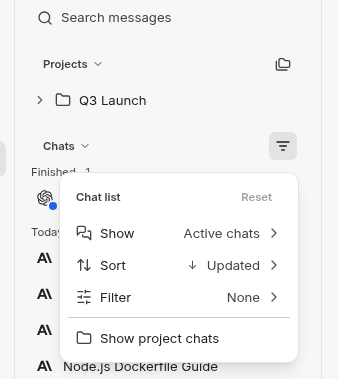
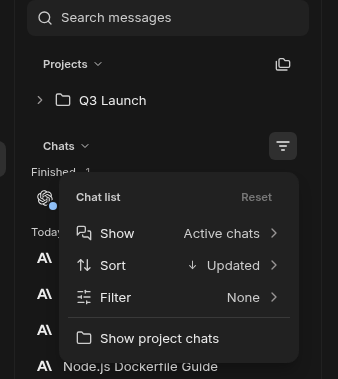
The button shows a count when the list differs from the default. Reset at the top of the menu puts everything back; Clear filters clears only the filters. Show and Filter choices last until you reload the page or sign out, while the sort order and Show project chats are remembered in this browser. Your administrator may limit how many endpoints one filter can include with conversationList.
Unread Replies
When a reply finishes while you are in another chat or another tab, that chat gets an unread dot in the list. The dot clears once you open the chat and the reply is on screen. Read state is saved to your account, so opening the chat on your phone clears it on your laptop too.
To come back to a chat later, choose Mark as unread from its menu in the list. It is not offered for the chat you have open or one that is already unread. Temporary chats never show as unread, and neither does a reply stopped before it produced anything.
Tab counts, desktop notifications and sounds are set in Settings.
Chat options
The ... button in the chat header opens Chat options for the open chat: Share, Export, Rename, Pin, Change project, Duplicate, Archive and Delete. A dot on the button means the chat has an active shared link. Pin, Change project and Archive are not offered for a temporary chat, and the menu is hidden on a new chat. See Shareable Links and exporting a conversation.
Each chat in the sidebar has its own menu with Pin, Mark as unread, Rename, Archive and Delete. While you hold Shift, the open chat's row shows one-click archive and delete buttons.
Mobile Drawer
On a phone, the sidebar is a full-screen drawer. Swipe right across the conversation to open it and swipe left inside it to close it; scrolling, typing and code blocks that scroll sideways keep their own gestures. The drawer header has the panel switcher, New chat and your account menu.
If you would rather keep the conversation in view, turn on Show chat beside the sidebar on mobile in Settings > General. The drawer then stops short of the edge, leaving a strip of the chat visible, and tapping the strip closes the drawer.
Archived Conversations
Archiving hides a chat from your list without deleting it. Open Archived chats from the account menu, or switch Show to Archived chats in the chat list menu, to find, restore or delete archived chats. They sort by when you archived them; chats archived before LibreChat recorded that date fall back to their creation date.
To clear out your whole list at once, use Archive all chats in Settings > Data & Privacy.
How is this guide?