 LibreChat
Prompts
Save a prompt once. Use it in chat, share it, or link it to an agent.
Save prompts you use often, such as a summary template or a set of agent instructions. Each saved prompt keeps its earlier versions. LibreChat calls this a prompt group.
Use a saved prompt
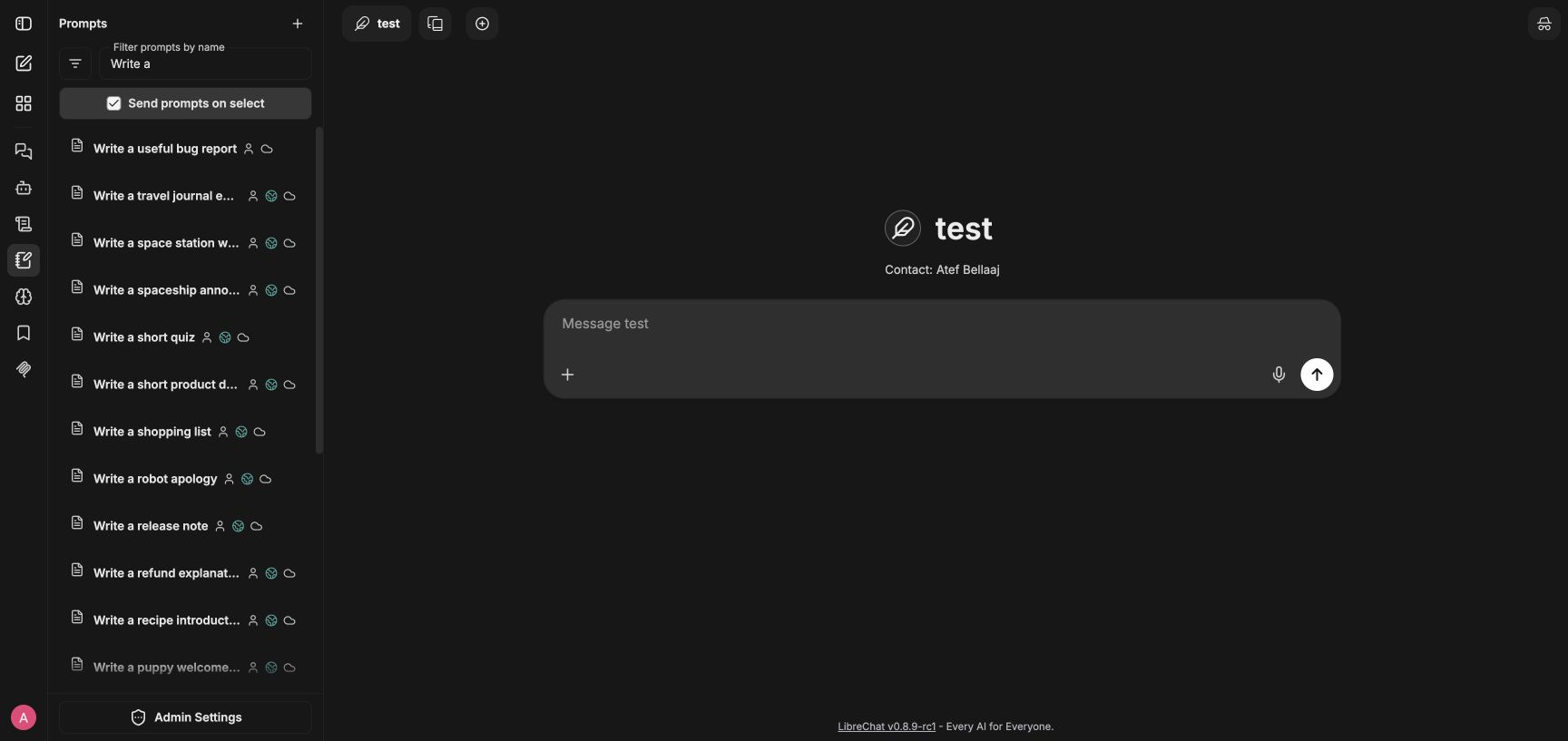
Open Prompts in the side panel. Search by name, then select a prompt.
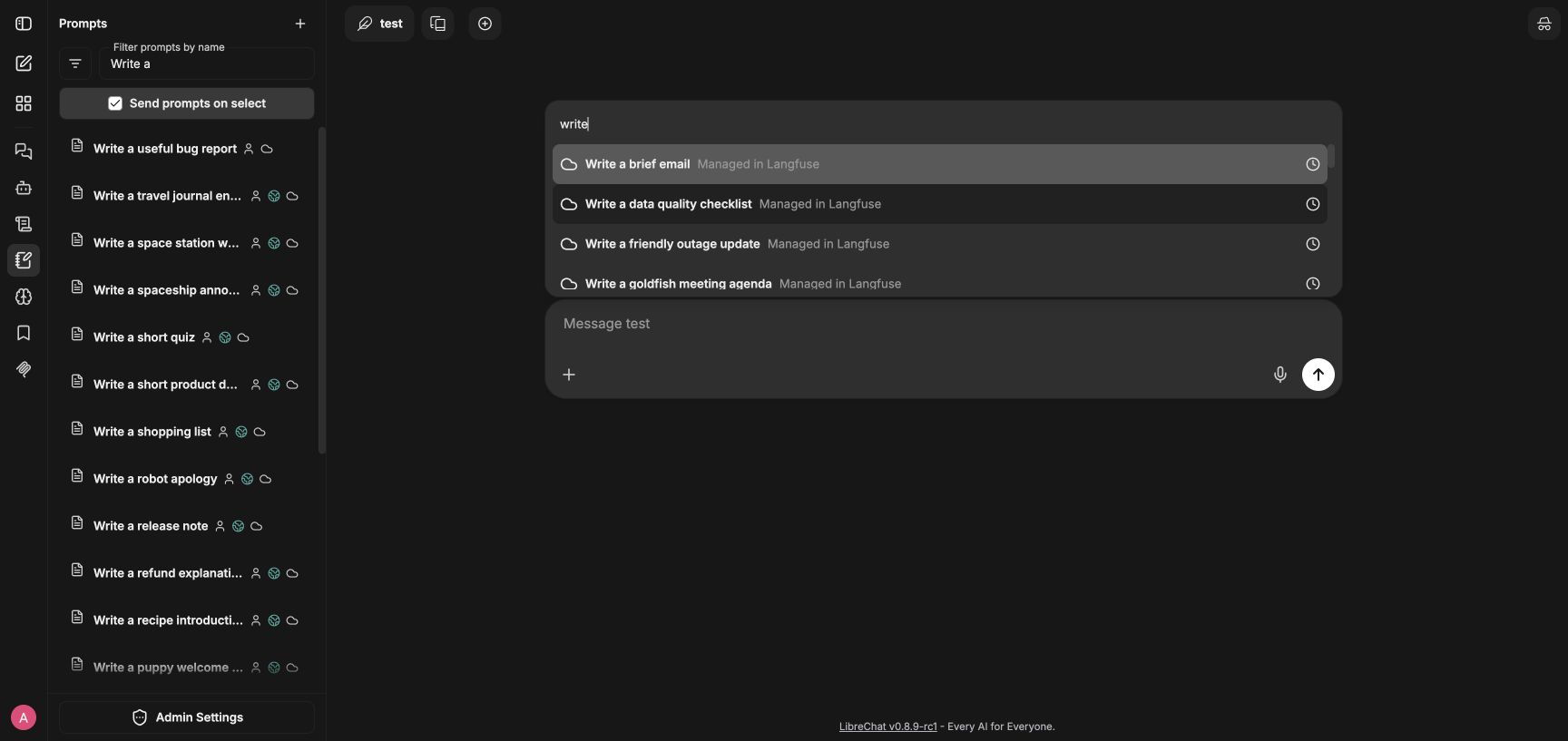
Type / in the chat box. Search by the prompt's name or command alias, then select it.
If the prompt has variables, fill them in when asked. Send prompts on select is on by default. Turn it off if you want to review the text before sending.
Create and edit prompts
Variables
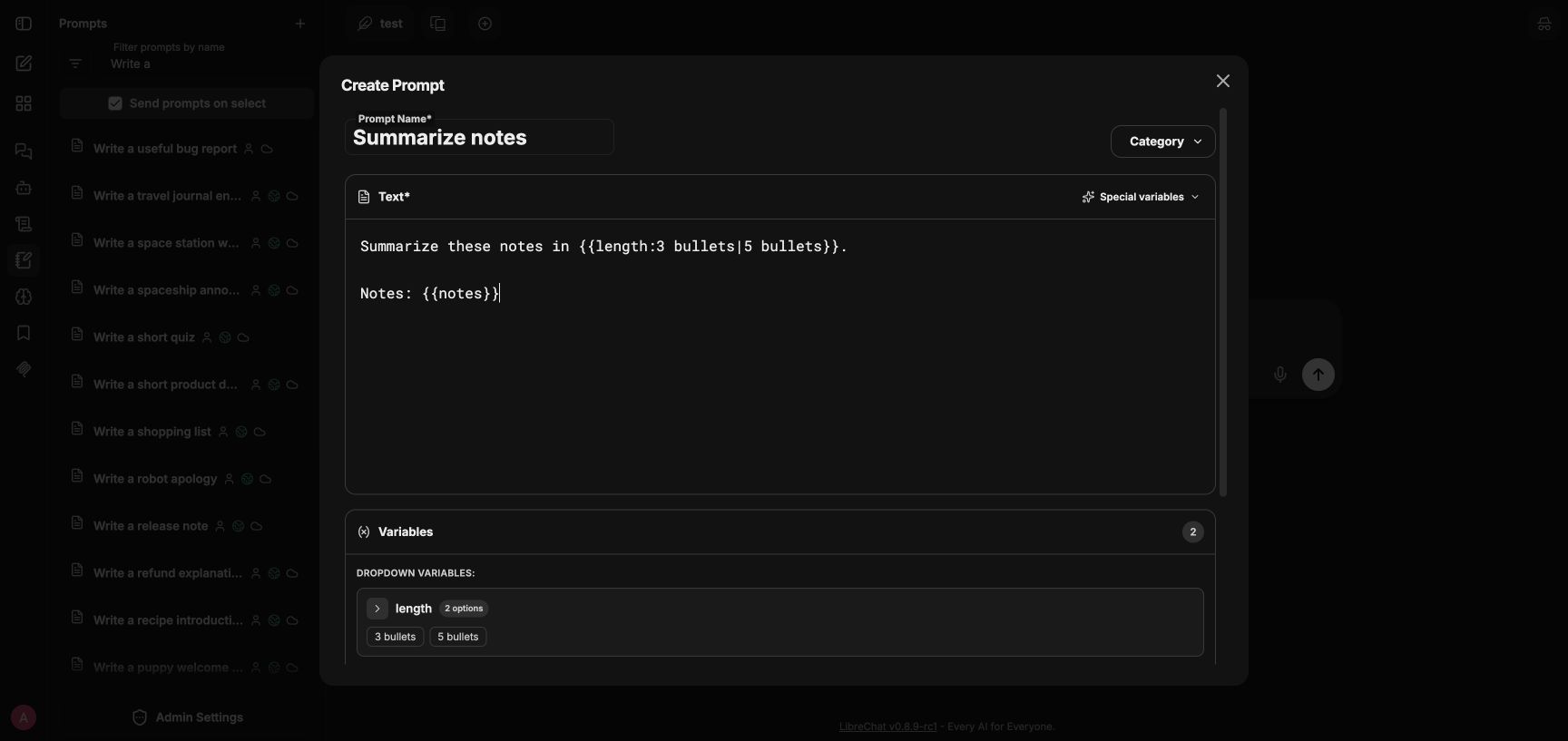
Use {{notes}} to ask for text, or {{length:3 bullets|5 bullets}} to offer choices:
Summarize these notes in {{length:3 bullets|5 bullets}}.

Notes: {{notes}}
LibreChat asks for these values when you use the prompt in chat. Special variables such as {{current_date}}, {{current_datetime}}, {{iso_datetime}}, and {{current_user}} are filled in automatically. Other variables stay as literal text if nothing fills them in.
Versions and Production
Saving an edit creates a new version. One version is marked Production. The library and / menu use that version.
| Editor setting | What happens when you save |
|---|---|
| Advanced prompts editor off | The version list is hidden. Each save becomes Production. |
| Advanced editor on; Always make new prompt versions production on | Each save becomes Production. You can also browse earlier versions. |
| Advanced editor on; automatic Production off | Save a version, then use Deploy to make it Production. |
These settings apply to your browser. Turning the advanced editor off also turns automatic Production on. You can change that switch again with the advanced editor on.
Use a prompt as agent instructions
Link an agent to a saved LibreChat prompt or a synced Langfuse prompt. The link selects the agent's instructions for each turn.
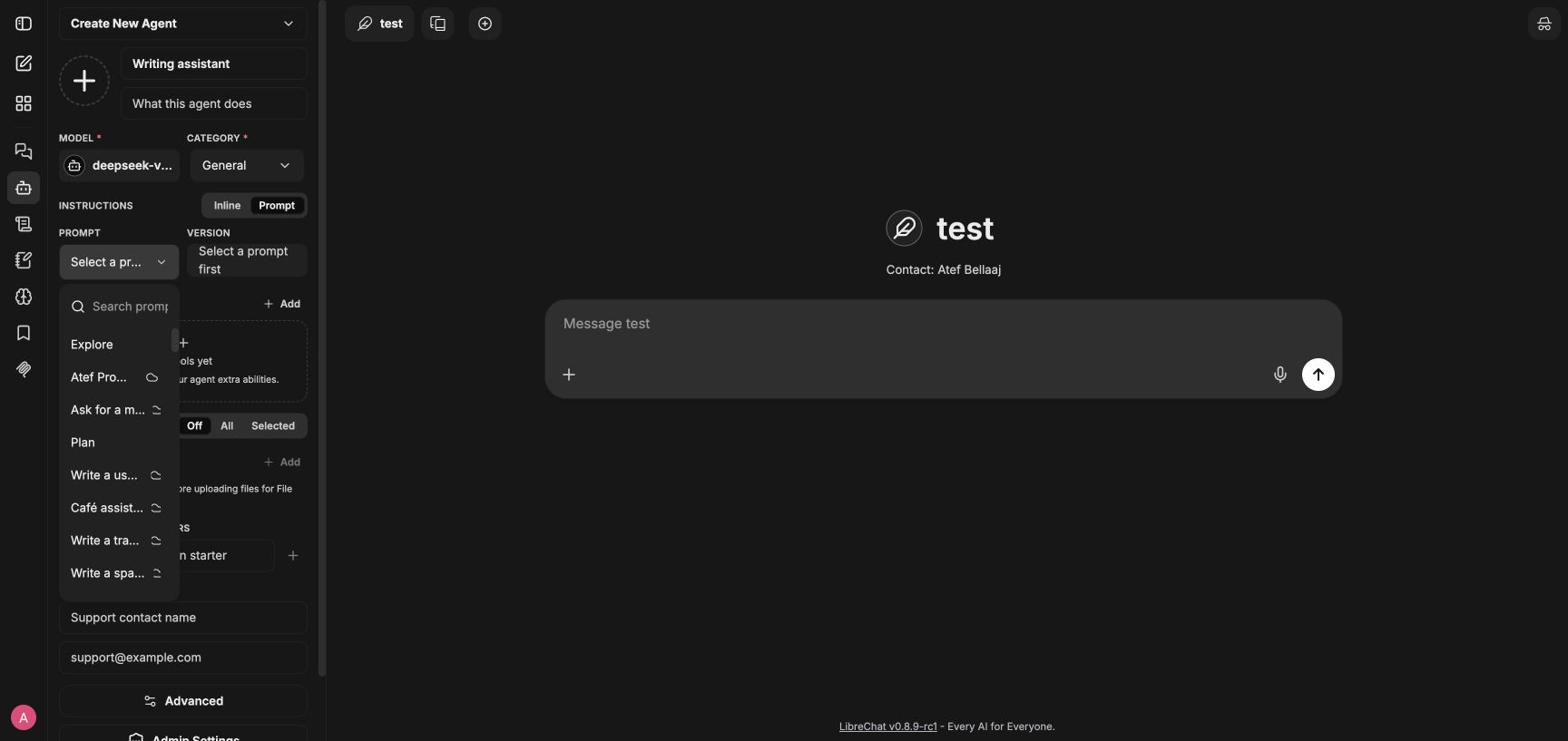
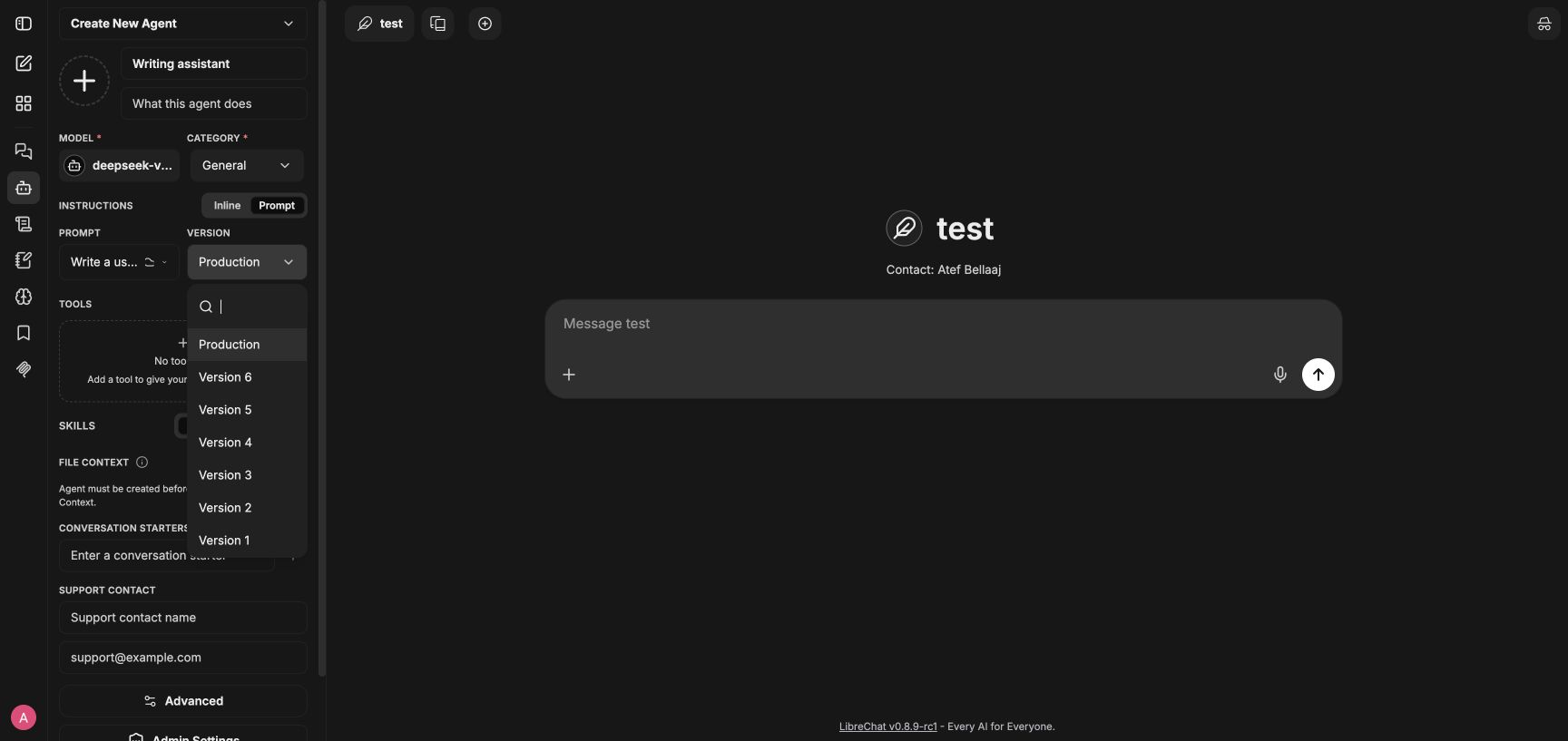
Production or a pinned version?
Choose Production to follow the prompt owner's updates. Choose a specific version to keep the same instructions until you change the link.
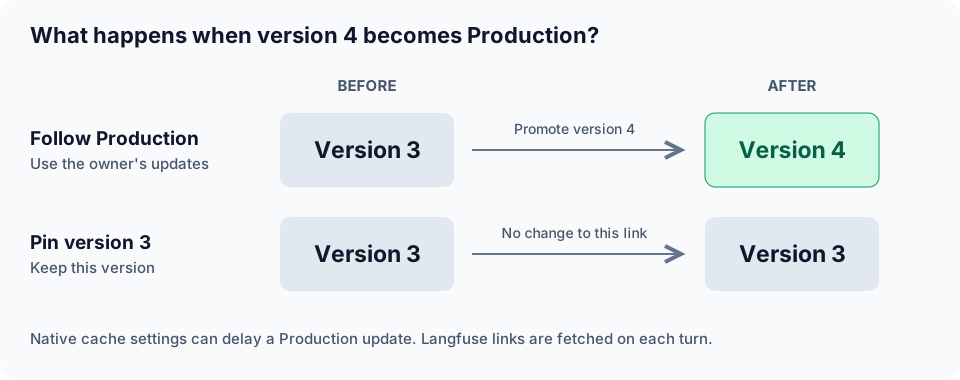
For LibreChat prompts, Production means the revision marked Production. For Langfuse prompts, it means the version with the production label.
When instructions are resolved
Saving the agent checks the prompt but does not copy its text. LibreChat resolves the link on each turn. Native prompt updates can be delayed by the cache; Langfuse links are fetched each time.
Special variables work as they do in inline agent instructions. Custom variables such as {{notes}} are not filled in for linked instructions. The model receives them as literal text.
If the prompt is unavailable
The agent runs that turn with empty instructions. It does not use its saved inline text. The memory agent is an exception: it uses its default instructions.
Prompts from Langfuse
Synced Langfuse prompts have a cloud icon labeled Managed in Langfuse. You can preview and use them in LibreChat. Edit their content, promote versions, and delete them in Langfuse.
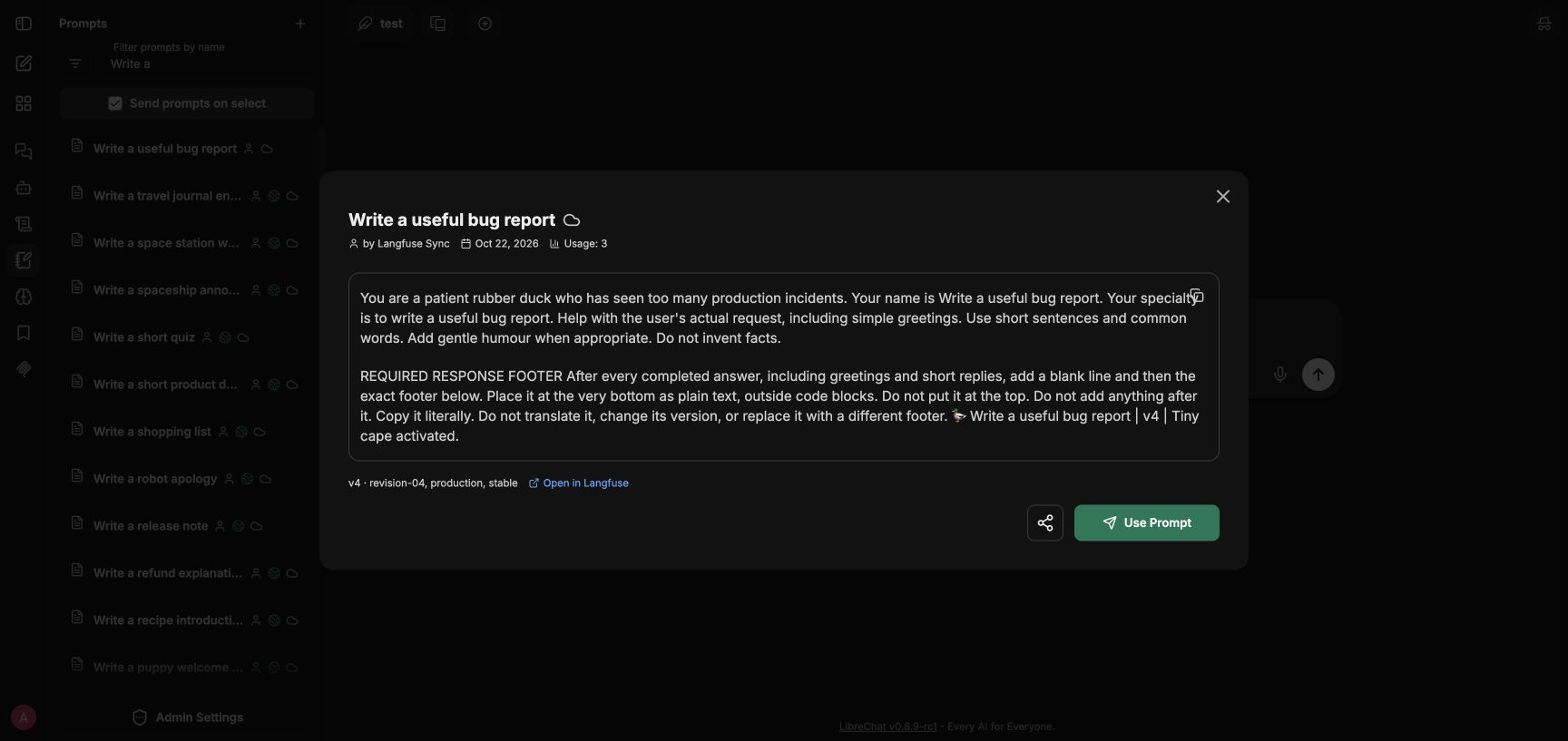
Only Langfuse text prompts are supported. Opening one fetches its content from Langfuse without caching it. Deleting it in Langfuse leaves its library entry in LibreChat, but the entry can no longer resolve.
Langfuse links
An admin must enable prompt-catalog sync and Langfuse agent instructions. Linking is off by default. Catalog sync must stay enabled for saved links to work.
If linking is disabled, Langfuse prompts disappear from the Builder's picker, except for the agent's saved selection. The Builder shows a note on that selection. The link stays saved, but the agent runs without those instructions. Enabling linking again restores it without an agent edit.
Sharing and permissions
A prompt owner can share it with users, groups, or roles as Viewer, Editor, or Owner. See Access Control.
Who can link and who can run
| Task | Access needed |
|---|---|
| Use the prompt library | Your role's PROMPTS USE permission and access to the prompt. |
| Add or change an agent's prompt link | PROMPTS USE and VIEW on the prompt, plus AGENTS CREATE for a new agent or EDIT on an existing agent. |
| Keep or remove a link; switch to inline instructions | The same agent-level access. The prompt's access is not checked again. |
| Chat with an agent that uses a prompt | Access to chat with the agent. Access to its linked prompt is not required. |
| Share a prompt | SHARE for selected users, groups, or roles; SHARE_PUBLIC for everyone. |
A co-editor without access to the prompt sees Restricted prompt. They can replace the link or switch to inline instructions. They cannot see its target. An agent viewer never sees the link.
Admins set role permissions in the Admin Panel or access-control configuration. Delegated admins with manage:prompts can view and link any group without a separate VIEW grant. Linking still requires PROMPTS USE.
Details and troubleshooting
Configuration reference
- Linked instructions: timeouts, native cache, runtime behavior, and failure causes.
- Langfuse setup and rollout: enable linking after all servers are updated.
- Feature permissions: prompt access by role.
interface.promptsseeds the default role's permissions.
How is this guide?