 LibreChat
Message Composer
The box at the bottom of every chat, where you write, attach files, switch on tools, and queue or steer follow-ups while a reply is still coming in.
The composer is the box at the bottom of every chat. Next to the text field sit a + button for files, tools, skills and MCP servers, a chip for each tool you have switched on, and the controls for reasoning effort, dictation and sending.
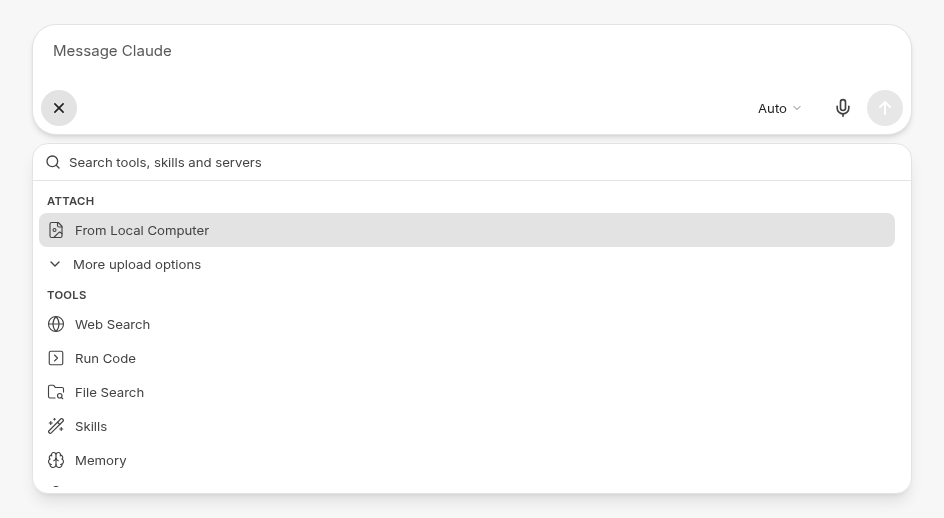
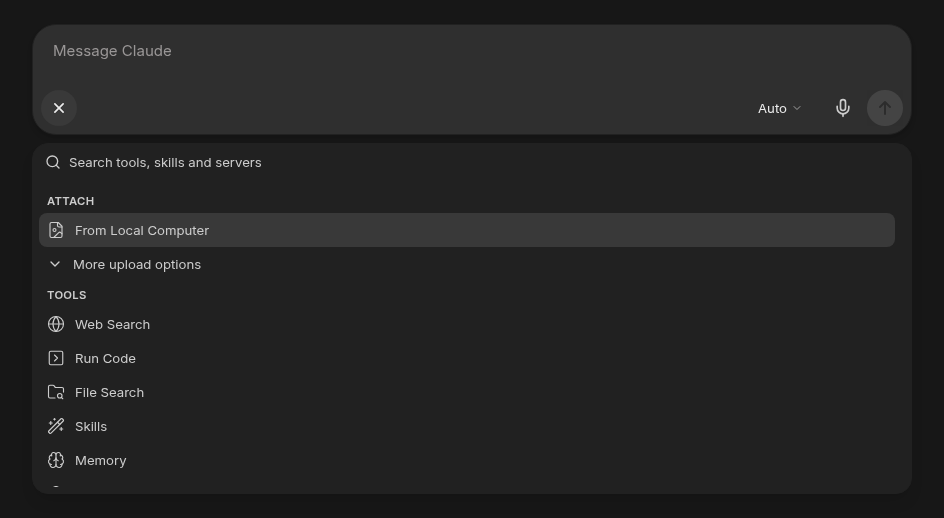
Click + (screen readers announce it as Attach and tools) to open the palette. Everything in it is searchable from the field at the top, so typing a few letters is usually faster than scrolling.
Add files
Choose From Local Computer in the Attach section, drag files onto the composer, or paste them. LibreChat decides how each file reaches the model (sent to the provider directly, extracted as text, or indexed for File Search) based on the file type and the endpoint, so you only pick where the file comes from. From SharePoint shows up next to it when your administrator has connected SharePoint.
Some deployments use the older uploader, where you pick the destination yourself: Upload to Provider (or Upload Image for providers that only take images), Upload as Text, Upload for File Search and Upload to Code Environment. The first option is shown and the rest sit behind More upload options. Picking Upload for File Search or Upload to Code Environment also switches that tool on.
Reuse a file you uploaded before
Your files in the palette lists your most recently used files (five by default). Select one to attach it again without uploading it. Typing in the search field searches all of your files by name, and Show all opens a dialog with every file, split into All, Images and Documents, with previews for images and PDFs.
Turn on tools, skills and MCP servers
Below Attach, the palette groups what you can add to the conversation:
- Tools: built-in tools such as Web Search, Run Code, File Search, Skills, Memory and Artifacts. You only see the ones that are enabled and that you have access to.
- Skills: skills to attach to your next message.
- MCP Servers: the MCP servers available in chat, each with its connection status.
Selecting a tool or MCP server switches it on or off, and the palette stays open so you can flip several in one go. Each one that is on gets a chip on the composer; remove the chip to switch it off. Some chips have a menu of their own, for example the generation mode for Artifacts.
Selecting a skill works differently: it is staged for your next message (see Staged context) instead of becoming a chip.
If an MCP server is not connected yet, selecting it starts the connection, including an OAuth sign-in when the server needs one. Servers that need your own credentials ask for them first, and keep a Configure button on the row afterwards so you can change them.
With an agent selected, the Tools and MCP Servers sections disappear, because the agent's own configuration decides which tools it uses. The same goes for Assistants.
Show all and favorites
Each section shows up to five rows. Show all on the Skills, MCP Servers or Your files header opens the full list with search and filters; skills and servers can be narrowed to Made by you or Favorites.
To favorite a row, highlight it and press Ctrl+D (Cmd+D on macOS). Favorites move to the top of the palette and are saved to your account.
Your administrator can also pin built-in tools. A pinned tool keeps its chip on the composer even while it is off, so it is one click away. Removing the chip of a pinned tool that is off unpins it for you.
Staged context
Anything attached to your next message shows up above the text field before you send:
- Files, with upload progress and an image preview.
- Long pastes. When Upload as Text is available, pasting more than 2,500 characters attaches the text as
pasted-text.txtinstead of filling the box. Select it to edit the text in a larger dialog, or choose Move back into message to put it back in the text field. Turn this off with Paste long text as a file in Settings > Chat. - Excerpts you quoted from earlier messages with Add to chat (see Quote excerpts).
- Skills you picked from the palette or with
$.
Remove anything you no longer want before sending; everything left goes out with the message. You can send files on their own without typing anything.
Thinking
On models with a reasoning setting, the Thinking control opens a slider from Faster to Smarter, plus any separate modes the provider offers, such as Auto. It changes the same value as the Parameters panel. If the model has no reasoning setting, or your administrator has hidden parameters, the control is not shown.
Queue and steer while a response streams
You can keep typing while a reply is streaming. What sending does at that point depends on the default you set under While generating, Enter will in Settings > Chat (see Personal Settings):
- Queue: the message waits and sends when the reply finishes.
- Steer: the running response picks up your message at the next safe point without cancelling tools or reasoning.
- Interrupt: active tools and reasoning are cancelled, completed output is kept, and the response continues with your message.
For how steering works with agents, and when it is available, see Steering and Queued Messages.
Queued messages wait in a Queued messages list above the composer. From each one you can Send now, Remove message, or open More options to Edit message (moves it back into the text field), Start in a new chat, or Disable Queue so it will not send on its own. Drag messages to reorder them, or focus one and use the up and down arrow keys.
Keyboard shortcuts
In the text field
The table assumes Press Enter to send messages is on, which is the default. With it off, Enter adds a new line and Ctrl+Enter sends.
| Keys | Action |
|---|---|
| Enter | Send. While a reply streams, runs your While generating, Enter will choice. |
| Shift+Enter | New line. |
| Ctrl+Enter (Cmd+Enter) | New line. While a reply streams, the other action: send now if Enter queues, queue if it steers or interrupts. |
| Alt+Enter (Option+Enter) | While a reply streams: interrupt with your message, when the run allows it. |
| Ctrl+Shift+Enter (Cmd+Shift+Enter) | Same as Alt+Enter. |
| Ctrl+Shift+X (Cmd+Shift+X) | Stop the reply. |
/ | Insert a saved prompt. |
@ | Switch model, preset or agent. |
+ | Add another model or preset for a side-by-side reply. |
$ | Pick a skill for the next message. |
You can rebind or turn off shortcuts from the account menu; see Keyboard Shortcuts.
In the palette
| Keys | Action |
|---|---|
| Type | Search tools, skills, servers, upload options and files. |
| ↑ / ↓ | Move between rows. |
| Enter | Select the highlighted row. |
| Ctrl+D (Cmd+D) | Favorite or unfavorite the highlighted row. |
| Backspace on an empty search, or Escape | Close the palette. |
Setup
The composer needs no setup. Administrators control what appears in it: the older uploader with fileConfig.legacyFileUploadUX, the number of recent files with interface.composerRecentFiles, pinned tools with interface.defaultPinnedTools, and SharePoint through SharePoint integration. A model spec with hideBadgeRow hides the tool sections for that spec.
How is this guide?
Image Generation & Editing
Generate and edit images by chatting with an agent that has an image tool, using OpenAI, Gemini, Flux, or a local Stable Diffusion server.
Resumable Streams
A response keeps generating when you refresh, lose your connection, or switch tabs, and picks up where it is when you come back.