 LibreChat
Message Actions
Copy, edit, rerun, fork, quote and rate messages, and copy or download code blocks.
Every message in a chat has a row of small buttons under it. On a desktop they appear when you hover over the message or move keyboard focus to it. Buttons that make no sense while a reply is still streaming stay hidden until it finishes.
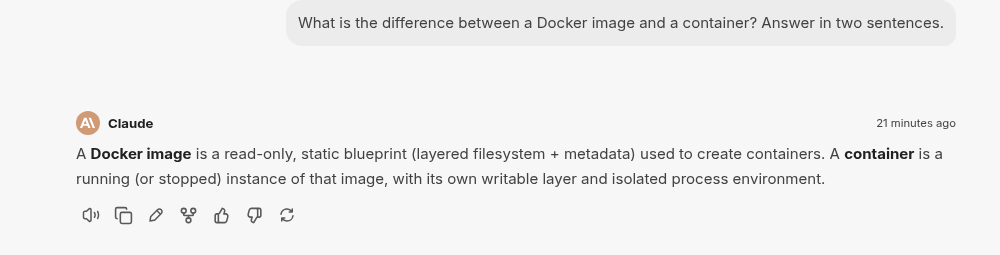
What each button does
| Button | What it does |
|---|---|
| Read aloud | Reads the message out loud with text to speech, when it is enabled. |
| Copy to clipboard | Copies the message text. |
| Edit | Opens the message in an editor. See Edit and rerun. |
| Fork | Starts a new conversation from this message. See Forking Conversations. |
| Love this / Needs improvement | Rates a reply. You can add a reason and a comment. |
| Regenerate | Asks the model for a new reply to the same message. The old reply stays available as an earlier version. |
| Continue | Shown on the latest reply when it stopped before finishing, for example at the output token limit. Picks up where it left off. |
Which buttons appear depends on the endpoint and the message. User messages, for example, have no rating or Regenerate button.
Edit and rerun
Choose Edit on your own message or on a reply. The editor has three buttons:
- Save keeps your change without generating anything new.
- Update & rerun sends your edited message again and gets a new reply. The button reads Rerun when you have not changed anything, and when you are editing a reply, where it replays the user message that came before it.
- Cancel closes the editor.
While editing, Ctrl+S (Cmd+S) saves, Ctrl+Enter (Cmd+Enter) reruns, and Escape cancels.
A rerun keeps the files, quoted excerpts and skills that were attached to the original message, so you do not have to add them again. A message that only has files and no text can be edited and rerun too.
Replies from agents can contain more than text. The editor only lets you change the text and reasoning parts; tool calls, errors and artifacts are shown but read-only. A rerun applies one edited part at a time, so if you change several parts, use Save.
Copy
Copy to clipboard copies the visible text of the message. For agent replies, reasoning, tool calls and errors are left out. Citations are turned into readable references.
If you paste into apps like Teams, Outlook or Word, turn on Copy messages as rich text in Settings > Chat. Copying then also puts a formatted version on the clipboard, so headings, lists, tables and code keep their styling.
Quote excerpts
Select some text in any message and choose Add to chat. The excerpt is staged above the composer and sent with your next message as a quote, so the model knows exactly which part you mean. You can attach up to 10 excerpts to one message, and each is cut off at 1,500 characters.
Quotes also work with steering and queued messages: an excerpt stays attached to the message you queue or steer with.
Code blocks
Code blocks in a reply have their own buttons in the header:
- Copy code copies the block.
- Download code saves it as a file named after the block's language, such as
code.pyorcode.toml. Blocks with no language, or one that does not look like a file extension, download ascode.txt. Error blocks have no download button. - Run Code runs the block with the Code Interpreter, when it is available for that language.
How is this guide?