 LibreChat
Conversation Pull Requests
See the pull request for a chat's code workspace, with its size, state and CI checks, in the chat header and the sidebar.
When an agent works on a repository in an attached code workspace, LibreChat finds the pull request for the branch the workspace is on and shows it next to the chat. You can see whether it is ready to merge, whether checks pass, and jump to it, without leaving the conversation. It works with GitHub, GitLab (where it is called a merge request) and Bitbucket Cloud, one provider per deployment.
Only chats that run code in an attached workspace can have a pull request. A plain chat, or a workspace that has not reported a branch yet, shows nothing.
In the chat header
On a wide screen, a chip on the left of the header shows the pull request icon, a small CI dot on its corner, and the pull request title. Hover or focus the chip to open a card with the details. The card stays open while your pointer or keyboard focus is inside it.
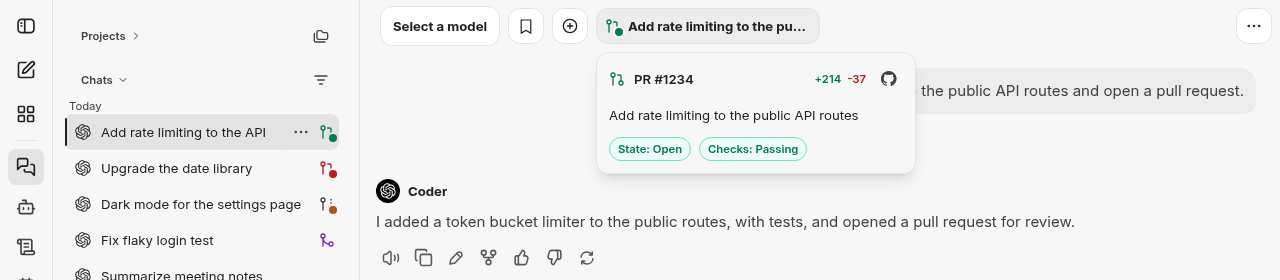
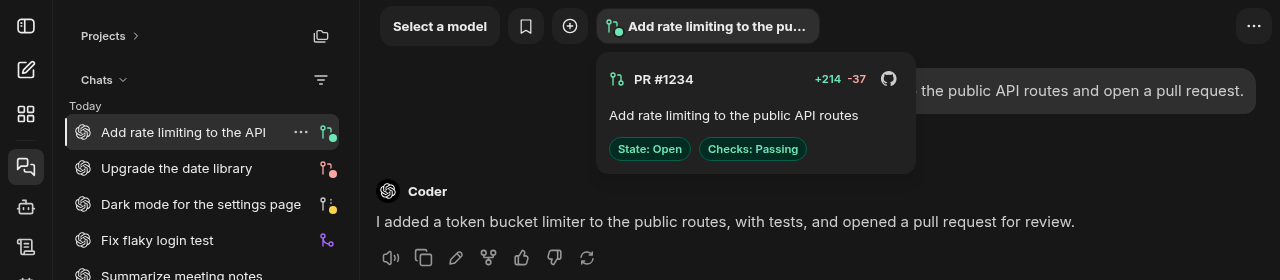
On a small screen there is no chip. Open the header's three-dot menu and pick the PR #number entry (MR !number on GitLab) to show the same card in a dialog.
The header keeps itself current: it checks again about every 20 seconds while checks are running or the provider is still working out whether the branch can merge, about every 60 seconds otherwise, and stops once the pull request is merged or closed with nothing left running.
In the sidebar
Conversations that have a pull request get the same icon and CI dot at the end of their row. The row keeps the conversation's own title. Hover the row, or focus or click the mark, to open the card beside it; clicking the mark does not open the conversation.
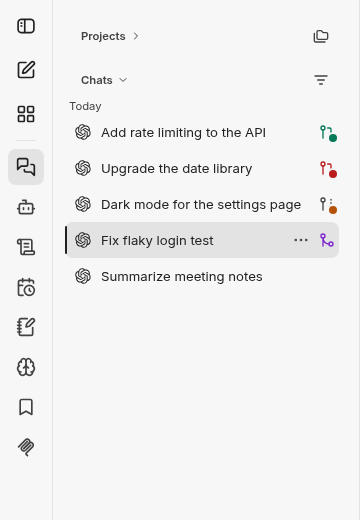
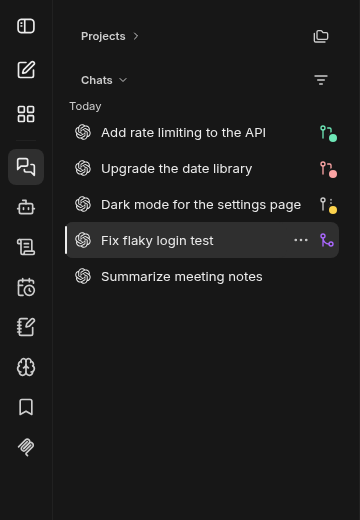
The sidebar does not poll. A row is as fresh as the last time the list loaded, and it refreshes when you come back to the window and its data is more than a minute old. If a refresh fails for a pull request that was already found, the mark stays and the card says "Couldn't refresh the pull request" with a Retry button. A conversation whose pull request has never been found shows no mark at all, even when the lookup failed.
Reading the card
The card shows PR #number (MR !number on GitLab), the lines added in green and removed in red, an Open in GitHub, Open in GitLab or Open in Bitbucket link, the title, and two badges:
- State: Open, Conflicts, Draft, Merged or Closed. Conflicts replaces Open when the branch cannot merge cleanly.
- Checks: Passing, Failing, Running or None. On GitLab this is the head pipeline, and only if it ran for the current commit. On Bitbucket it is the commit statuses.
The icon color and the CI dot summarize the same information at a glance:
| Pull request | Icon | CI dot |
|---|---|---|
| Open, can merge | Green | From the checks |
| Open, mergeability not yet known | Neutral | From the checks |
| Open, merge conflicts | Red | From the checks |
| Draft | Neutral | From the checks |
| Merged | Purple | None |
| Closed | Neutral | None |
The dot is green for passing checks, red for failing and amber for running. There is no dot when the repository reports no checks. A failing check outranks one that is still running.
Which pull request you see
The workspace reports the repository, the branch and the commit the chat last ran at, and LibreChat looks for a pull request from that branch:
- If the chat's own command output printed a link to a pull request in the same repository (for example the URL
gh pr createprints), that pull request is used, as long as it comes from the chat's branch. - Otherwise open pull requests for the branch are preferred over closed ones, so an old closed pull request on a reused branch name does not hide the current one.
- A pull request only counts if it contains the commit the chat last ran at. Deleting a branch and reusing its name does not bring back the old pull request.
- A brand new branch with no commits matches nothing.
Repositories the server is not allowed to look up behave exactly like repositories without a pull request: no mark, no error.
Connect your own account
If your admin has set it up, you can look up pull requests with your own GitHub, GitLab or Bitbucket account. Open Settings, go to Account, and under Connected accounts click Connect next to Pull request account. A sign-in window opens at the provider; approve it and the row shows Connected. If the window does not open, allow pop-ups for LibreChat and try again.
Once connected, lookups use your account, so you see pull requests in any repository you can read, under your own rate limit. Disconnect removes the connection and you can connect again at any time. If the server cannot refresh your connection (the provider is down, for example), your pull requests show as unavailable rather than quietly switching to the server's token. If you revoke the app at the provider, LibreChat removes the connection and you are back to not connected.
If the row says Not in use, your admin has turned off account connections and lookups no longer use your account. Click Disconnect to remove the stored connection.
Setup
The feature is on by default but stays hidden until an admin gives LibreChat a token and a list of repositories it may look up, or sets up an app so users can connect their own accounts. It also needs an attached code workspace that reports its git branch. See Pull Requests configuration.
How is this guide?